
So, my current project, The Swarm is Coming..., has a nicely designed (at least I think so, HUD (Head Up Display) - this displays the current weapon, health, messages and so on.
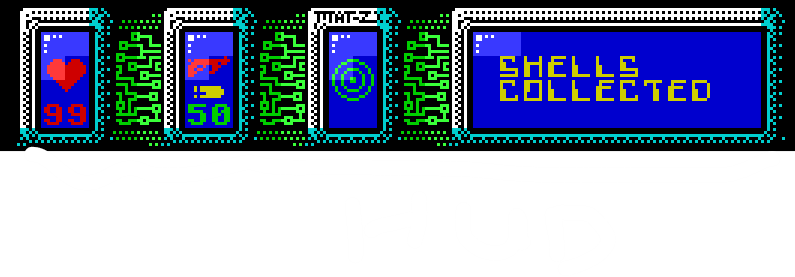
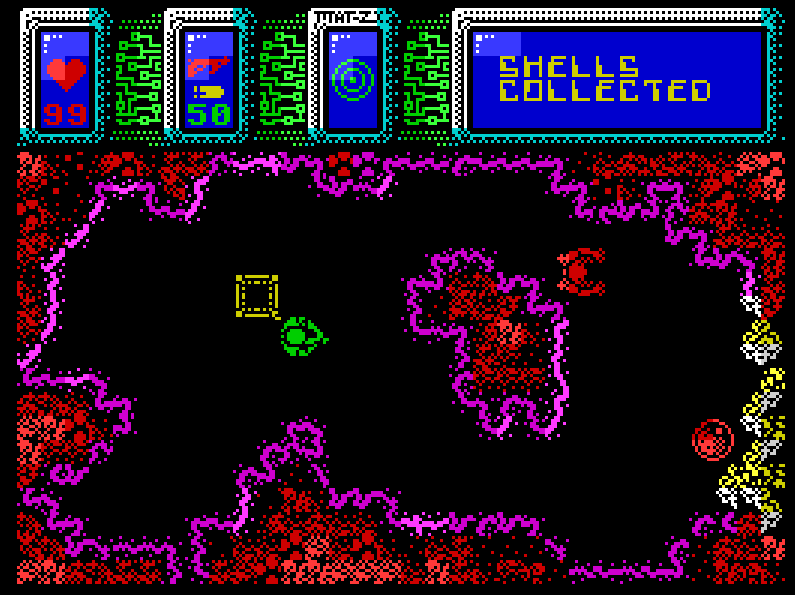
When I first created it, I designed it using blocks. Then in my Game Initialisation script I turned it into code, using PUTBLOCK.
This was a stupid idea.
For a number of reasons.
First, it meant a whole stream of code to achieve, lots of REPEAT loops, lots of PUTBLOCKS and so on.
Not terribly efficient.
Second, I am developing the game using Adventure Mode, in adventure mode MPAGD will store data relating to any PUTBLOCKS that take place during the game, so that a screen that changes (perhaps if you remove a wallblock and replace it with an emptyblock for, say a door that has been unlocked) will retain the new blocks if the screen is redrawn or re-entered.
Now, my HUD is interactive, so when the player selects a different weapon, the bullet icon in the HUD changes.
Try doing that in adventure mode using PUTBLOCKs! - the game will soon bomb out of memory!.
The solution was staring me in the face all the time. One of MPAGDs most powerful tools, DATA & READ.
And of course, the ability to redefine the Font.
So, I set about redefining the font, replacing the characters in the font that the game wont be using, with the graphics for my HUD.
Each font character (in this case our HUD graphics) can be called using the CHR command, provided we know its number.
So, my Font now looks like this:
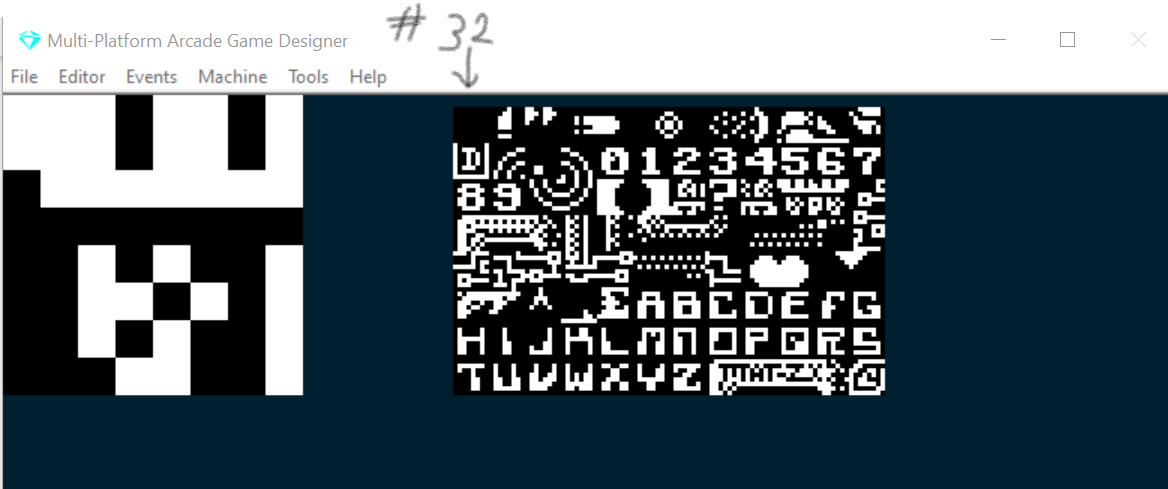
CHR starts at 32 (32 is a blank space....you''ll probably need that, so best not to redefine it!)
You'll note that I had to make a trade-off here, I only have one font case set, all uppercase, but that wasn't a big sacrifice for me.
So the first CHR in the Font is 32, then 33, 34 and so on. So we'll need to keep track of the CHR number of each HUD graphic.
OK, so, once you have done this you'll probably have noticed a problem...Fonts don't have colours like the BLOCK editor, the most efficient way is to use the COLOUR command, like CHR it needs an 8bit number to define the paper, ink, bright and flash attributes.
Here's a handy cut out and keep reference chart I made...
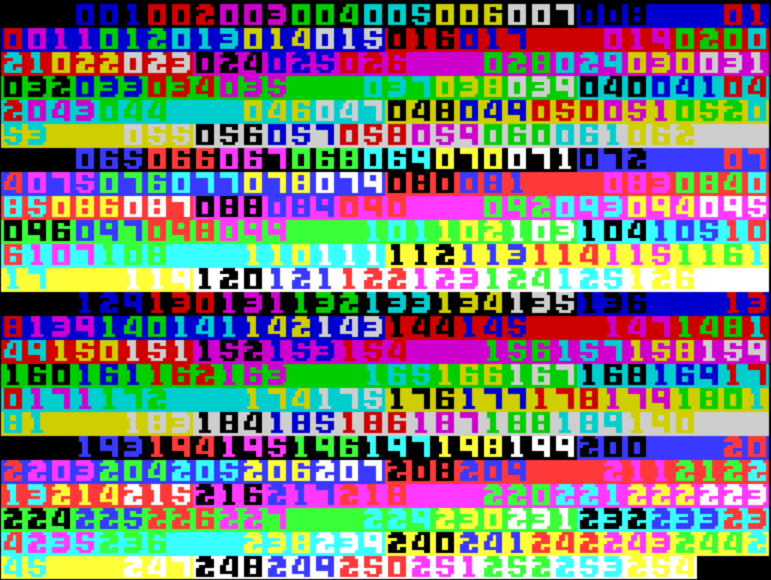
So colour 1 is dark blue ink on black paper, colour 93 is bright cyan ink on bright magenta paper. Note that colours 123 and up have the Flash attribute....which obviously doesnt work well in a static image!
For each horizontal line of my HUD I should now have a list of CHRs and COLOURS.
So, let's put them into a DATA statement(s)
You should entire your DATA in the paired format:
DATA (COLOUR#) (CHR#) (COLOUR#) (CHR#) (COLOUR#) (CHR#) .... and so on
Each DATA statement can have 16 of these numbers (8 pairs)
So your first DATA statement will define the first 8 characters (horizontally) of your HUD
If your game is using the full screen width you will therefore need 4 DATA statements to fully define each line of your HUD (Mine uses 6 full width lines)
Once you have fully defined your DATA, we just need a small script that READs the CHR and COLOUR values for each cell in the HUD and then displays it on the screen... something like this:
; DRAW THE HUD
;==========================================================
LET B = 0            ; We'll use B for the LINE NUMBER
REPEAT 6             ; my HUD has 6 lines of graphics
   AT B 0            ; so we'll start in the top left corner
   REPEAT 32         ; for each line there are 32 character squares
      READ V         ; the first number we read is the COLOUR value, store it in V
	  READ W         ; the second number we read is the CHR value, store it in W
	  COLOUR V       ; set the COLOUR to V
	  CHR W          ; display CHR W
   ENDREPEAT         ; do this for each cell in the row
   ADD 1 TO B        ; then increment B (to go to the next LINE)
ENDREPEAT            ; and do it all again!


;HUD DATA - ALTERNATES BETWEEN COLOUR AND CHR

DATA 71 68 71 69 71 69 5 70 4 76 68 77 71 68 71 69
DATA 71 69 5 70 4 76 68 77 71 123 71 124 71 125 5 126
DATA 4 76 68 77 71 68 71 69 71 69 71 69 71 69 71 69
DATA 71 69 71 69 71 69 71 69 71 69 71 69 71 69 5 70

DATA 71 71 79 78 79 32 5 72 4 67 68 87 71 71 79 78
DATA 79 32 5 72 4 67 68 87 71 71 79 78 79 32 5 72
DATA 4 67 68 87 71 71 79 78 79 32 15 32 15 32 15 32
DATA 15 32 15 32 15 32 15 32 15 32 15 32 15 32 5 72

DATA 71 71 74 88 10 89 5 72 4 79 68 80 71 71 74 92
DATA 10 93 5 72 4 79 68 80 71 71 78 41 14 42 5 72
DATA 4 79 68 80 71 71 79 32 15 32 15 32 15 32 15 32
DATA 15 32 15 32 15 32 15 32 15 32 15 32 15 32 5 72

DATA 71 71 10 90 10 91 5 72 4 81 68 84 71 71 14 35
DATA 14 36 5 72 4 81 68 84 71 71 14 43 14 44 5 72
DATA 4 81 68 84 71 71 15 32 15 32 15 32 15 32 15 32
DATA 15 32 15 32 15 32 15 32 15 32 15 32 15 32 5 72

DATA 71 71 71 32 71 32 5 72 4 83 68 82 71 71 71 32
DATA 71 32 5 72 4 83 68 82 71 71 10 32 10 32 5 72
DATA 4 83 68 82 71 71 15 32 15 32 15 32 15 32 15 32
DATA 15 32 15 32 15 32 15 32 15 32 15 32 15 32 5 72

DATA 5 73 5 74 5 74 5 75 4 85 68 86 5 73 5 74
DATA 5 74 5 75 4 85 68 86 5 73 5 74 5 74 5 75
DATA 4 85 68 86 5 73 5 74 5 74 5 74 5 74 5 74
DATA 5 74 5 74 5 74 5 74 5 74 5 74 5 74 5 75
Unless you use RESTORE, using READ in this way means MPAGD will automatically know to carry on form where it left off last time it READ, which is why we can create some simple REPEAT loops to build the entire HUD
And that's it. I chose to put this in my GAME initialisation script, so it only gets called once, when the game starts, I then use CLW (which only clears the play area, not the HUD, in my RESTART SCREEN script.
I also use CHR and COLOUR within my game code to ensure the HUD displays the correct icons for weapons and items that the player has currently selected.
The net effect of this?, it saved me the best part of 350 bytes, which can be used elsewhere for more important stuff.
Huzzah!