For ZX Spectrum games made with MPAGD · Coming soon
Make the ZX Spectrum game you always imagined.
MPAGD gets your game running. The Minilop Power Desk takes it the rest of the way: bigger worlds, boss-sized sprites, music and sound effects, and a tape that loads properly. A Windows tool, coming soon.
Fit more in. Move screens into the 128K banks and free thousands of bytes.
Build bosses. Big sprites made from several pieces that move as one.
Tell a longer story. Join several stages on one tape.
Write with confidence. A script editor that checks your code as you type.
An independent tool. It is not made or supported by the author of MPAGD.
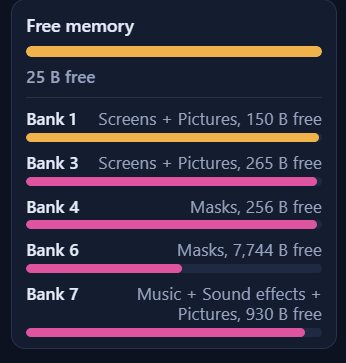
Where the memory goes, after banking
Main
Bank 1
Bank 3
Bank 4
Bank 6
Bank 7
ScreensMusicEffectsPicturesSprite masks
Illustrative layout, not a measured build. On Cocoa 3, moving screens into banks freed about 5,200 bytes of main memory.
What can you do with Power Desk?
Build bigger games
128K memory banking, a clear view of where every byte goes, and several stages on one tape.
Give your world room to grow. Your screens move into the spare 128K banks and are paged in as the player walks, so level after level fits.
Make a game in chapters. Build each stage as its own MPAGD game and join them on one tape, carrying lives, score, keys and the variables you choose from stage to stage.
Keep only the engine your game really uses. Link your MPAGD engine folder, apply the trimmed copy with a backup, and go back to any earlier version.
See exactly where every byte goes. A coloured map of main memory and a card for every 128K bank, so you know what you can afford before the next big idea.
A live gauge on every page. Check how much room is left in main memory and in each bank without leaving what you are doing.
Find the screens that slow your game down. The Desk runs your build in an emulator, times every screen, ranks them, names the biggest costs and compares with a saved baseline.
48K builds
Not every game needs 128K. Build a tape for a 48K game, with your loader and loading screen, ready for the classic machine.
Create better sprites
Masked sprites, big bosses and tight hitboxes.
Sprites that sit in the scene, not in a square of background colour. Every frame can have a mask, held in the spare banks.
Masked sprite settings
Tune how your masks look: a halo of 0 to 3 pixels, a mask limit, closing small gaps, and masking for objects too.
Build a boss to remember. A leader sprite and up to three pieces, such as 2 by 2 sprites of 16 by 16, move and draw together without tearing, with optional whole-shape collision for walls and hits.
Stop dying to a sprite that never touched you. Draw a tighter collision box for any sprite image, even a different one for every animation frame.
Flash an enemy when it is hit. A sprite blinks between two colours while one of its variables holds a value you choose, with up to four rules.
Sprite data finder
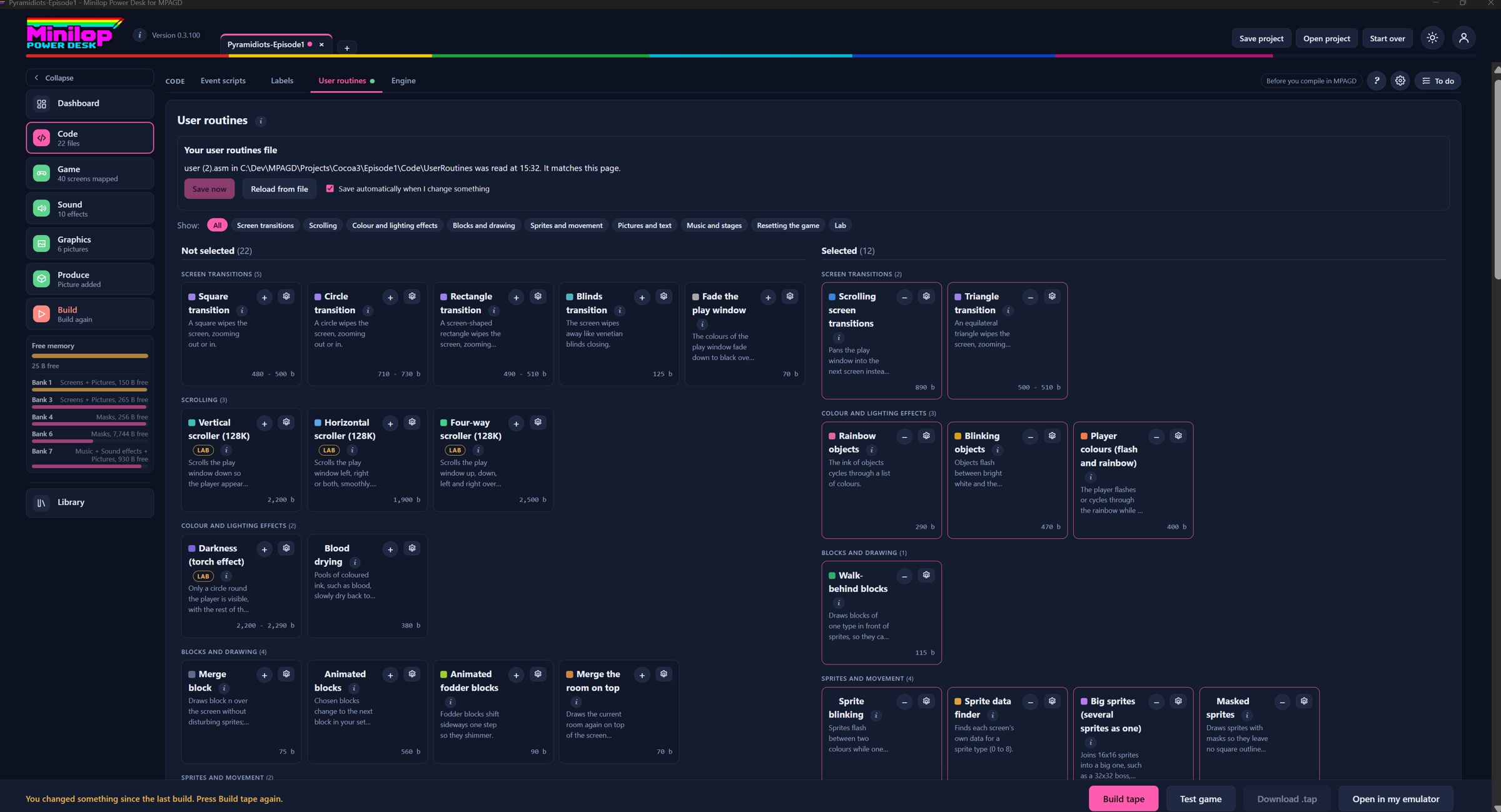
Give each sprite its own settings on every screen, such as a rope length or a platform path, and let it read them itself without counting through earlier screens.
Player colours
Flash the player when hurt and shimmer in rainbow colours while invulnerable, with the background put back as they move.
10 out of 10 for graphics
Scrolling, effects and ready-made routines you tick on, each with a USER number.
Add features with no coding. Tick what you want from a library of ready-made routines, grouped by category. The Desk writes your user.asm, shows a USER number map and warns about numbers nothing handles.
Vertical scroller Lab
Fly up through your map. The play window scrolls downward, smooth and tear-free, with masked sprites. It moves in small steps, with one colour per window.
Horizontal scroller Lab
Scroll sideways, right only, left only or both, smooth and tear-free, with masked sprites. It moves in small steps, with one colour per window.
Four-way scroller Lab
Scroll a grid of screens up, down, left and right. Move in steps of 8 pixels (a whole cell, full colour), or 4 or 2 pixels for smoother movement. Each block keeps its own colour. 128K only.
Let your heroes step behind the scenery, such as trees, pillars and doorways, even with masked sprites.
Animated blocks
Bring the scenery to life. Chosen blocks cycle through the next one to three blocks wherever they are drawn, for conveyor belts, torches and water, with speed and direction that can follow a variable.
Darkness with torch arcs Lab
Turn out the lights. Light a circle around the player, or a half circle that follows the way they face.
Screen transitions
Change scenes with style. Blinds, triangle, square, circle and rectangle wipes in a colour you choose, optionally after cutscene pictures.
Blinking and rainbow objects
Make pickups impossible to miss. Objects flash between white and their own colour, or cycle through a list of colours.
Text crawl
Roll your story up the screen. A run of messages scrolls up a window one pixel line at a time, in the style of a film intro crawl.
Blood drying
Leave a mark on the world. Pools of coloured ink on empty blocks dry back to the block colour, from the edges inwards.
Nine routines from Jonathan Cauldwell
Nine classic routines ready to tick on: animated fodder, fade, merge room, reset objects and variables, lives counter effect, rotational movement, 64-column text and ColdSnap Audio.
Add music and sound effects
AY music and effects, with tools to make both.
Give your game a soundtrack. Add Vortex Tracker II or ProTracker 3 songs, played from the frame interrupt and controlled from your script by one variable.
Write the tune yourself. Compose and edit PT3 songs inside the Desk, with a drag and drop song timeline. Simpler than Vortex Tracker II.
Keep using SOUND n, now with real AY effects. Add AY Sound FX Editor banks and choose which chip channels effects may borrow.
Design your own lasers and explosions. Draw an effect frame by frame, start from presets, preview it and add it to your game in one click.
MIDI import and WAV export
Start from a MIDI file. Turn it into a first arrangement in the tracker, and export a WAV to preview or share.
Song packing
Fit more songs in the bank with optional ZX7 compression. It is off by default.
Craft beautiful screens
Spectrum colour rules applied for you.
Make a loader that is yours. Edit the BASIC loader, choose your own loading screen and tape file name, and add a message and key wait.
Tell the story in full-screen pictures from .scr, PNG, JPG or GIF files. Each can wait for a key or time itself.
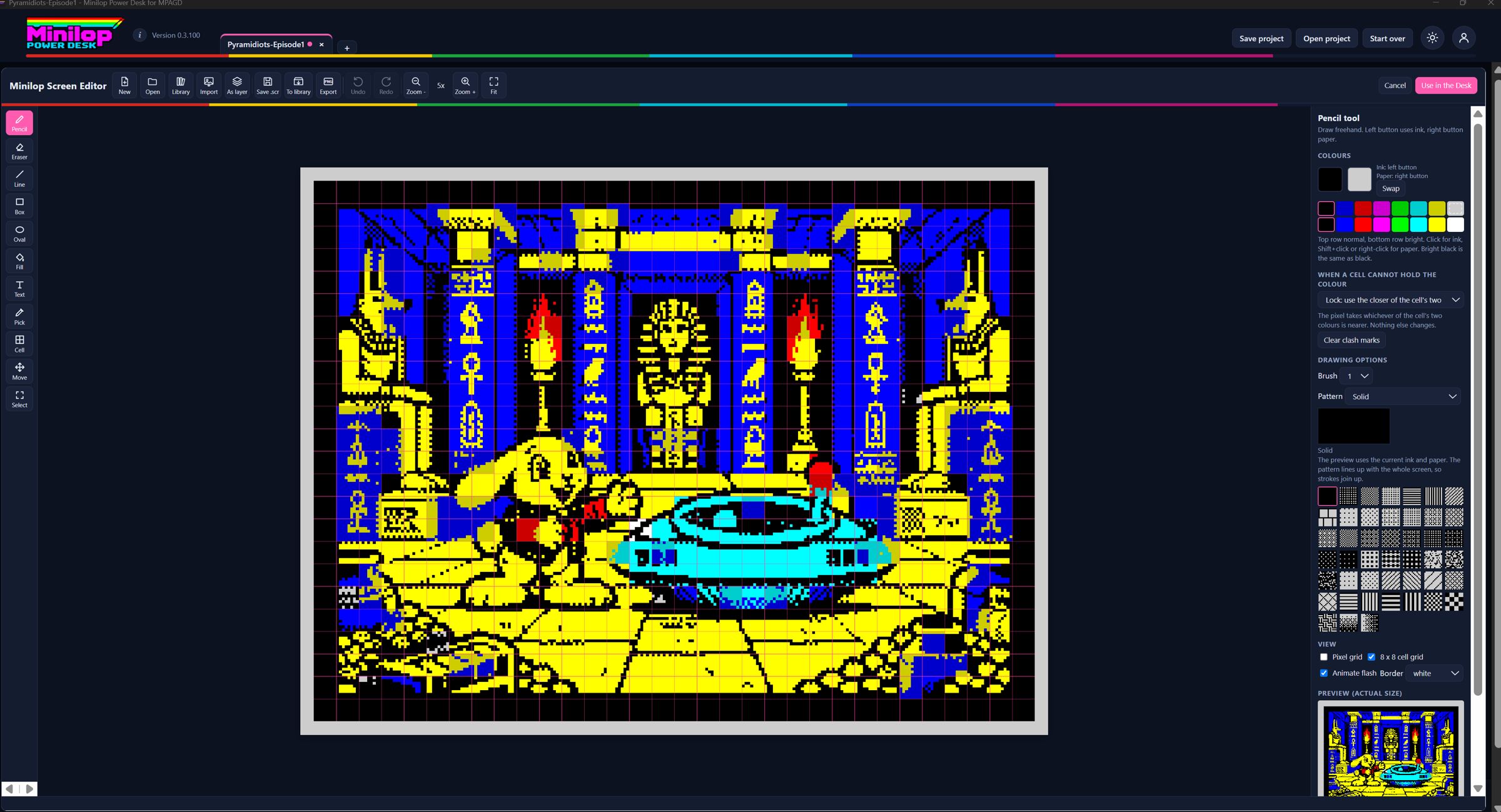
Draw a loading screen that follows the Spectrum's rules. A 256 by 192 pixel editor that keeps to the colour limits for you.
Drop in a picture and move it about. PNG, JPG or GIF images come in as movable layers matched to Spectrum colours.
Put words on your screens in any Spectrum font. A text tool with a font picker, .ch8 font files and a built-in font editor.
Write better MPAGD code
An editor for events.a00 to a20 and events.msg that knows MPAGD.
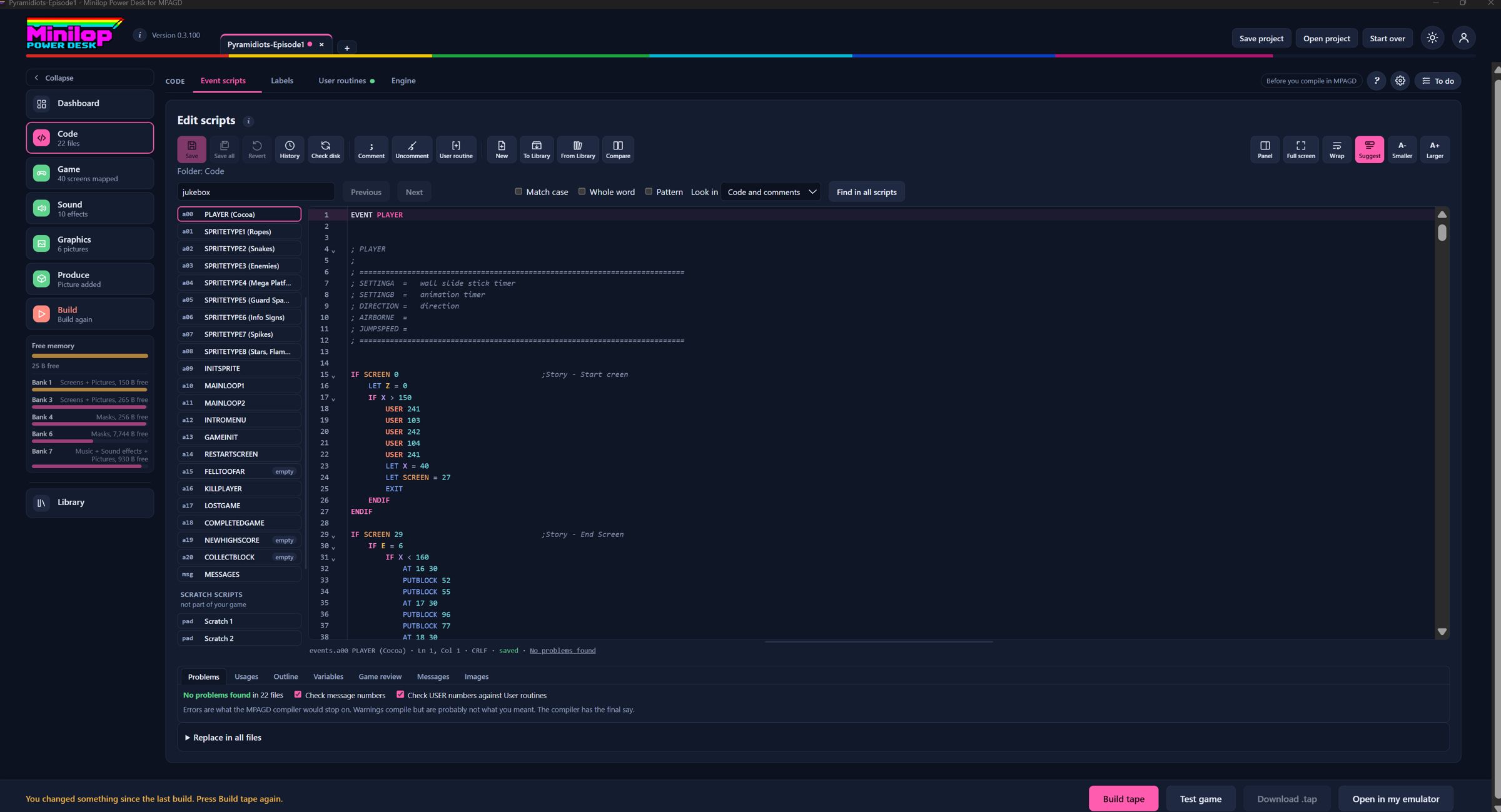
A code editor that knows MPAGD. Edit events.a00 to a20 and events.msg with colour coding, folding, per-file undo and careful saving that only writes what changed.
Hover previews
Hover to see. Point at an image, block, screen, object, colour or USER number to see what it refers to.
Renumber sprite images
Delete or insert a sprite image and every IMAGE number in your scripts is updated, with a preview and undo.
Insert user routine
Pick one of your user routines from a list and its USER line is added for you.
Careful save dialogue
Save with confidence. Each step is shown (check, look for outside changes, safety backup, write, history) and what was saved is listed.
Find bar and replace in all
Find anything fast. Every match is highlighted and you can step through them, or search and replace across all scripts, in code only or comments only.
Command suggestions and help
Never forget a command again. A pop-up list of MPAGD commands shows how each is written and follows the context.
See where everything is used. Every place a variable, USER number, message or command appears, with counts.
Game review
A health check for the whole game. Checks across all scripts and the game file, for example for variables never set or screens the player cannot reach.
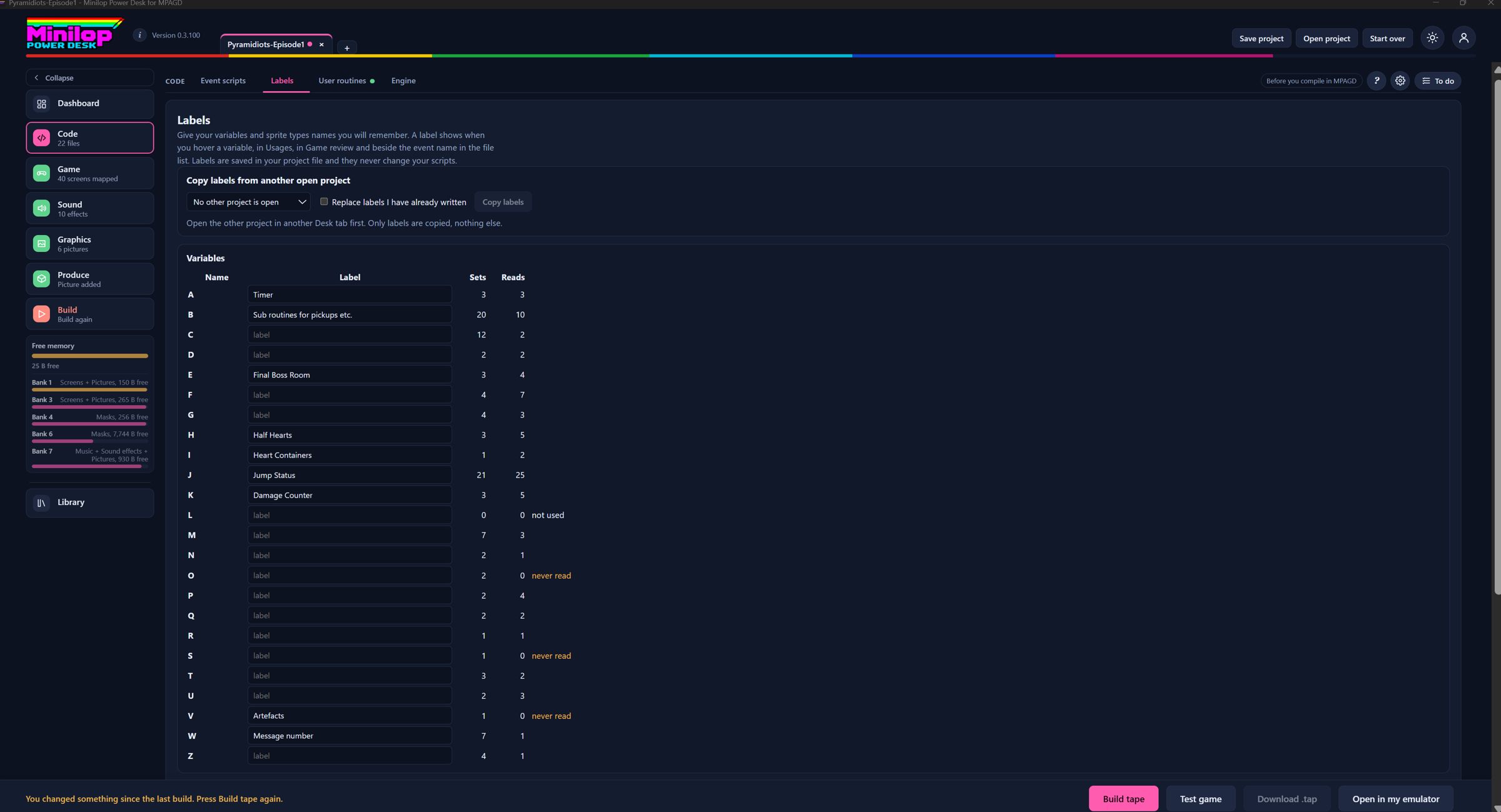
Give variables and sprite types memorable names that show in the editor and reports without changing your scripts. Copy labels from another open project.
Scratch scripts and script Library
Try ideas without risk. Scratch scripts are never part of the game, and the shared Library keeps your snippets.
Compare scripts
Show the same script from two projects side by side, with buttons to copy lines across.
Script checker
Catch mistakes before the compiler does. Errors and warnings appear as you type, following the compiler's rules. It agreed with the real compiler on 22 event files, 99 hand-made faults and 1,350 random damaged copies. The compiler still has the final say.
Messages tab
Move, insert or delete messages and every reference is renumbered, with a preview first.
Know your game
Read-only analysis, plus a few careful tools that rewrite the project.
Your game at a glance. A first page with your game's picture and numbers: screens, sprites, blocks and more. Each tile opens the matching tab.
See your whole world. Every screen is drawn from your blocks and laid out as on your MPAGD map, with sprites, objects and borders, and PNG export.
Know where everything is. See where each sprite and object is placed or spawned, and which ones look unused.
See which blocks earn their place. How many times each block is used, with a filter for blocks used fewer than a number of times.
Combine the best of two games. Builds a new .agd from the parts of two game files, for example to bring screens from one stage into another, with checks.
Documentation in one click. A README and picture sheets of every block and sprite frame.
Working with your project
The Windows desktop app, and the helpers around it.
From compile to tape in a click. Builds a .tap with an editable BASIC loader, ready to load. It says clearly when the main file is not a compiled game.
Help right where you are. A ? button on every page (or F1) opens the user guide at the part for the page you are on, in English, Spanish and Portuguese.
Languages
English, Spanish and European Portuguese for every page, the script checker messages and the help panel.
Project tabs
Keep several games, or several stages of one game, open at once.
Guided project setup
Start a project in a minute. A pop-up asks for the name, 128K or 48K, and your MPAGD folder once. The Desk finds the engine, build folder and build.bat itself.
Backups and Desk projects folder
Experiment without fear. Dated copies of your project files are made before risky changes, with restore and zip. Save project keeps earlier versions in a backups folder.
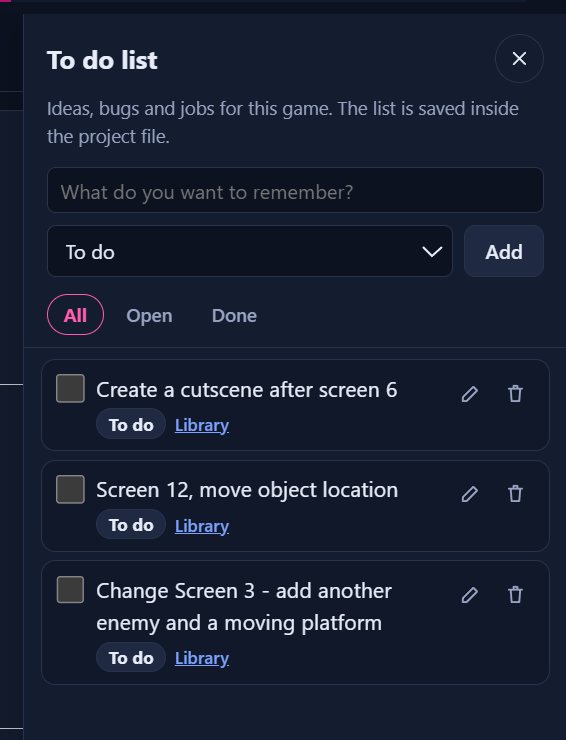
Never lose a good idea. A list for ideas, bugs and jobs in every project, saved in the project file.
Test game
Play it before you ship it. Your tape loads in an emulator inside the page, as a 48K or 128K machine.
Game folder set-up
A tidy home for every game. Creates a folder structure (DevEnvironment, Code and UserRoutines, Art, Music, Tapes) wherever you choose, with advice to keep one MPAGD per game.
Your project page
Link the files and folders MPAGD writes once, and the Desk re-reads the newest copies whenever you build.
Library
One shared folder of songs, effects, screens and scripts for all your projects, with authors you can search.
Use your own emulator
Prefer your own? Choose your Spectrum emulator in Preferences, then open the built tape in it with one click.
Save and open project
One project file holds your files, songs, effects, pictures and every setting.
Take a tour
A short guided walk round the main sections for new users, in English, Spanish and Portuguese.
What's new list
Plain-language notes for each version, in the user menu.
Looks (themes)
Make it yours. Classic, ZX Spectrum homage, Midnight or Focus colour schemes. Cosmetic only.
Windows desktop app
The Desk in its own window, with direct access to the folders you choose, no permission prompts, and a version number beside the logo.
Screen banking
Give your world room to grow. Your screens move into the spare 128K banks and are paged in as the player walks, so level after level fits.
Press Build tape and the Desk moves your compressed screens into the spare 128K banks, then builds the tape around them.
In the example shown, banks 1 and 3 hold screens, banks 4 and 6 hold sprite masks, and bank 7 holds music and sound effects.
Only screen data is banked. Code, blocks, sprites, events and objects stay in main memory.
A 128K machine is needed for the banked version.
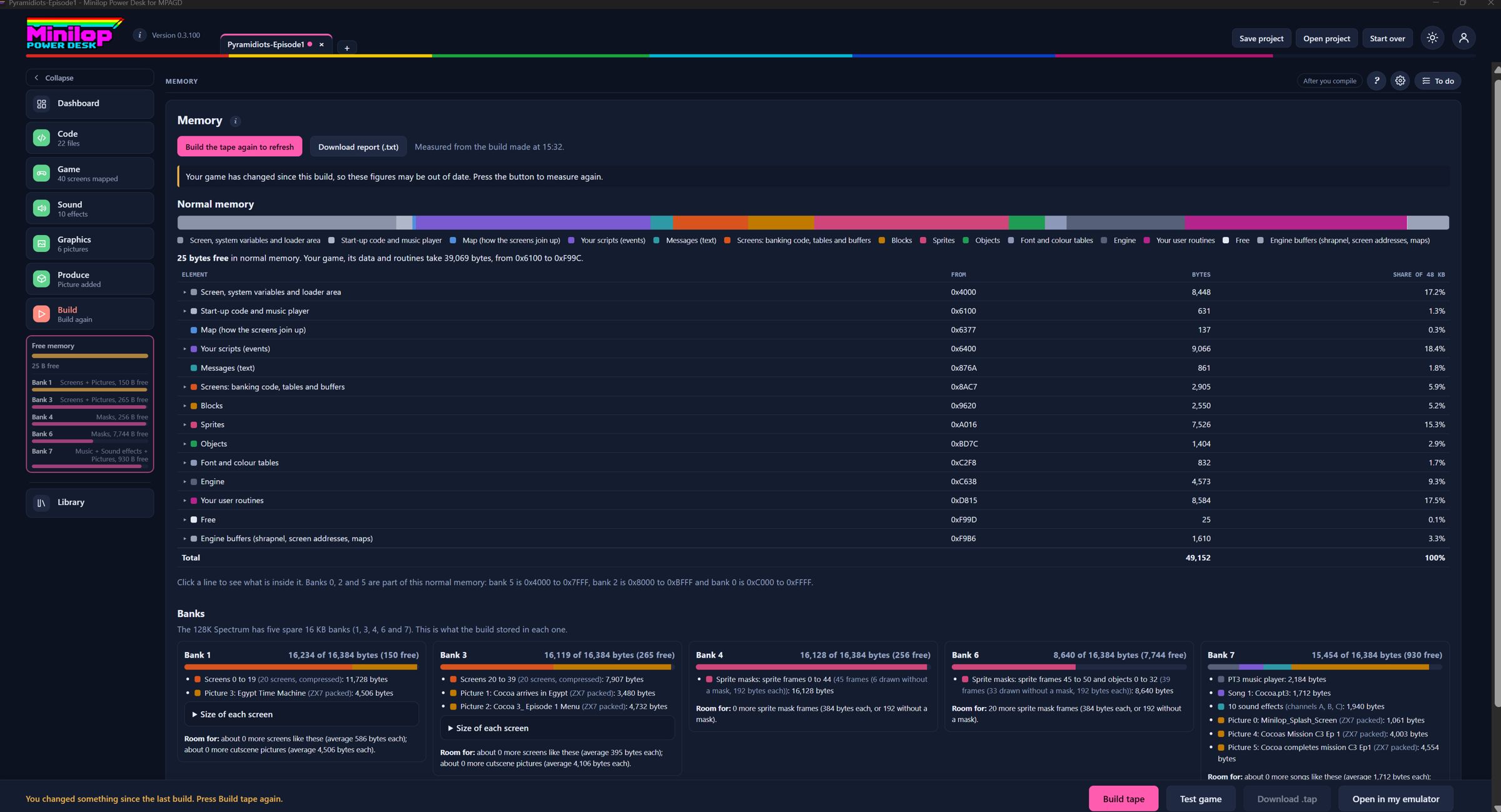
The Memory page after a build
Several stages on one tape
Make a game in chapters. Build each stage as its own MPAGD game and join them on one tape, carrying lives, score, keys and the variables you choose from stage to stage.
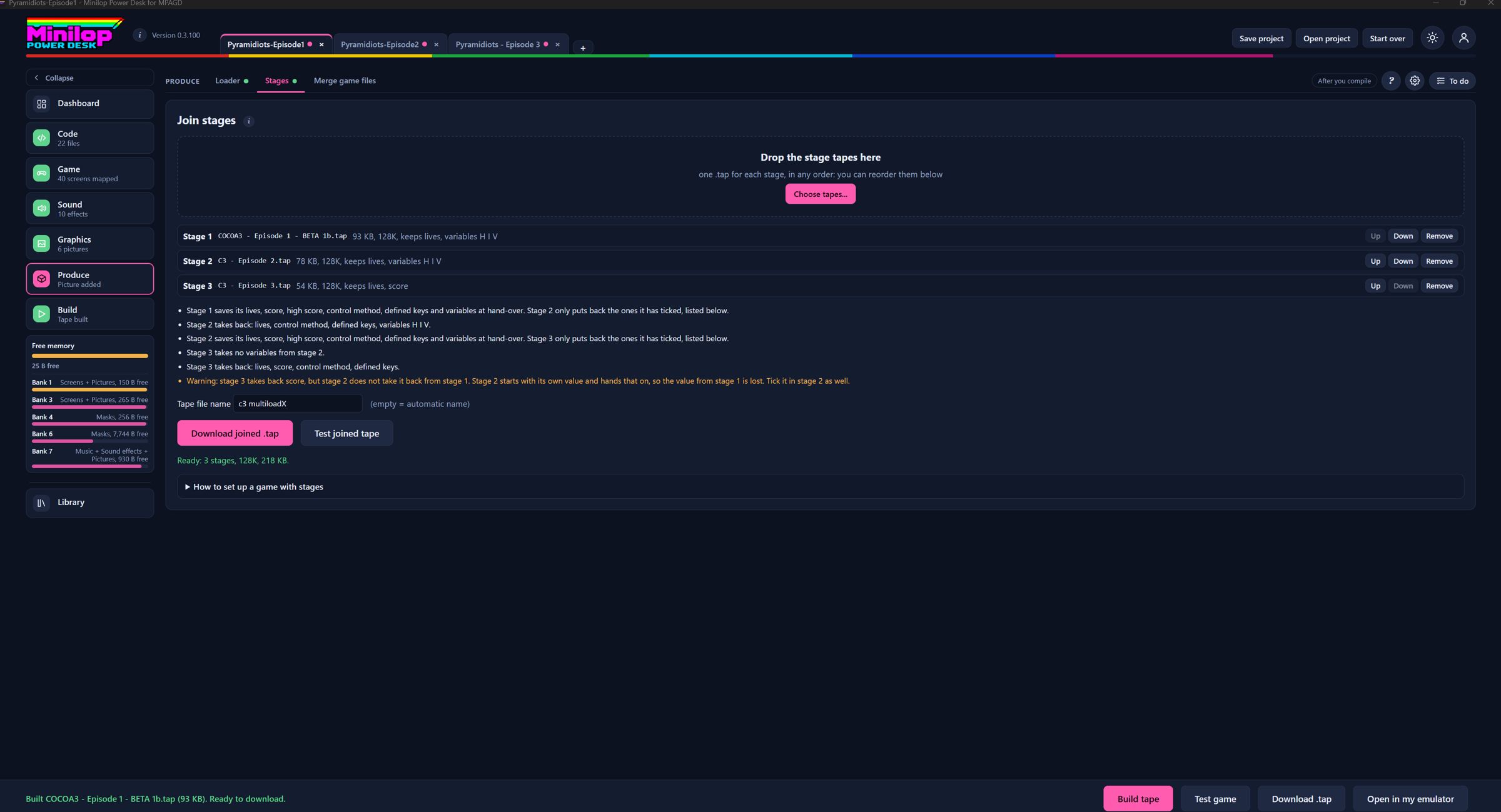
Each stage is its own MPAGD game. Tick the Stages routine in each one, call one USER number to hand over and another to take values back.
You choose what to carry across: lives, score, high score, the control method, defined keys and any of variables A to W and Z.
On the Stages page you add the tapes, put them in order and download one joined tape. A report lists what each stage hands on and takes back.
A message can tell the player to stop the tape and press PLAY for the next stage.
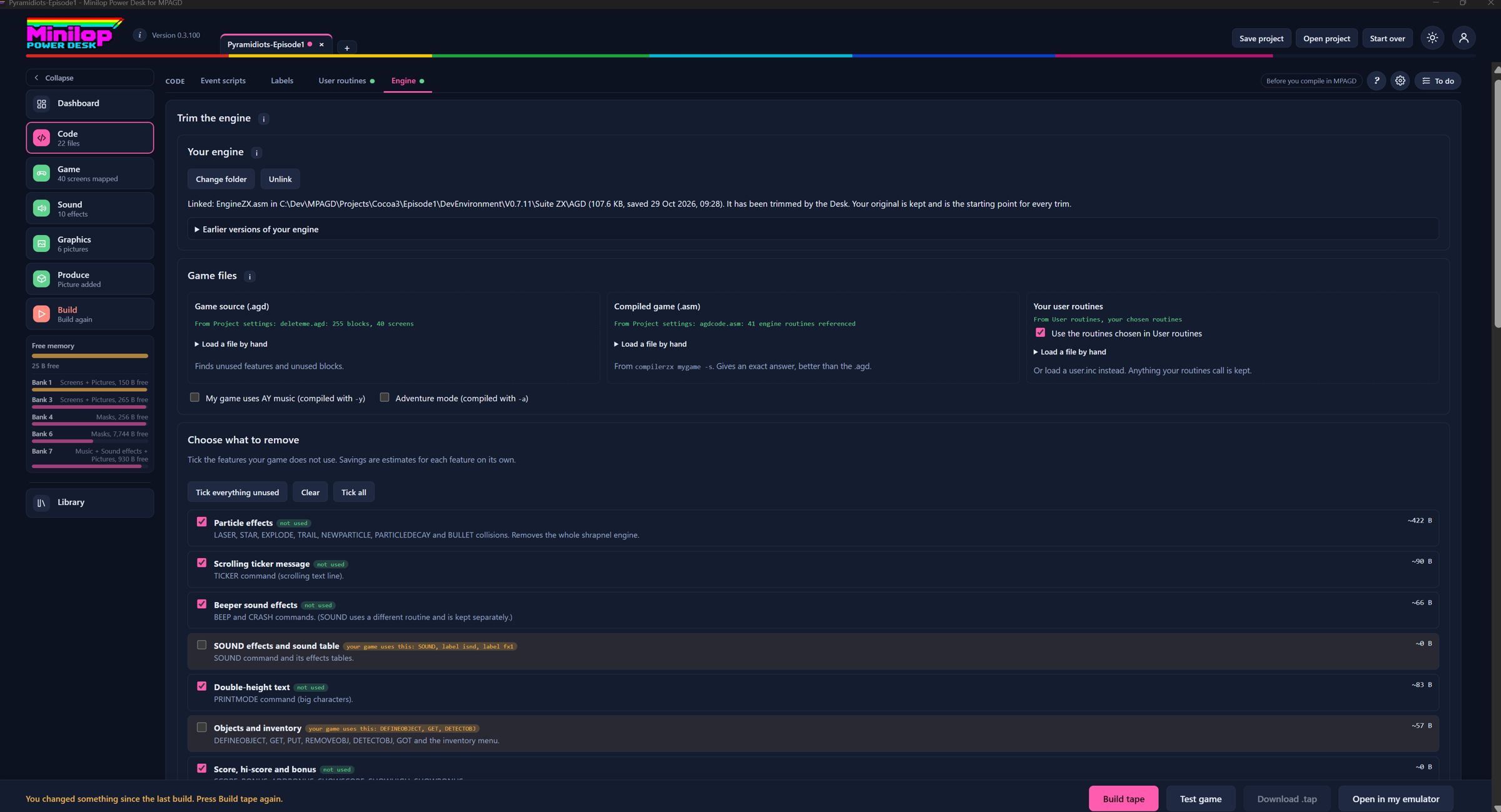
Keep only the engine your game really uses. Link your MPAGD engine folder, apply the trimmed copy with a backup, and go back to any earlier version.
Load your game and the Desk works out which engine routines it never calls.
Link your MPAGD engine folder, then Apply to my engine. The Desk saves a dated copy first and keeps your untouched original.
Every trim starts from your original, so trimming twice never loses routines. Earlier versions can be restored from the page.
Compile in MPAGD again afterwards.
Code, Engine
Memory page
See exactly where every byte goes. A coloured map of main memory and a card for every 128K bank, so you know what you can afford before the next big idea.
After a build it lists normal memory in address order: the fixed Spectrum area, start-up code, your main program and each element with its address and size.
Each 128K bank has a card showing how full it is and what is in it: screens, the music player and songs, sound effects, cutscene pictures and masks.
Room left for more gives a rough idea of how many more screens each bank could take.
Download report saves the figures as text.
The Memory page after a build
Free memory gauge
A live gauge on every page. Check how much room is left in main memory and in each bank without leaving what you are doing.
It sits at the foot of the step list on every page and says Not measured until you build.
After a build it shows the bytes free in normal memory, and a line for each bank with what it holds and how much room is left.
It turns amber when less than 5 per cent is left. Click it to open the full Memory page.
The Free memory widget at the foot of the step listThe Memory page after a build
Room speed
Find the screens that slow your game down. The Desk runs your build in an emulator, times every screen, ranks them, names the biggest costs and compares with a saved baseline.
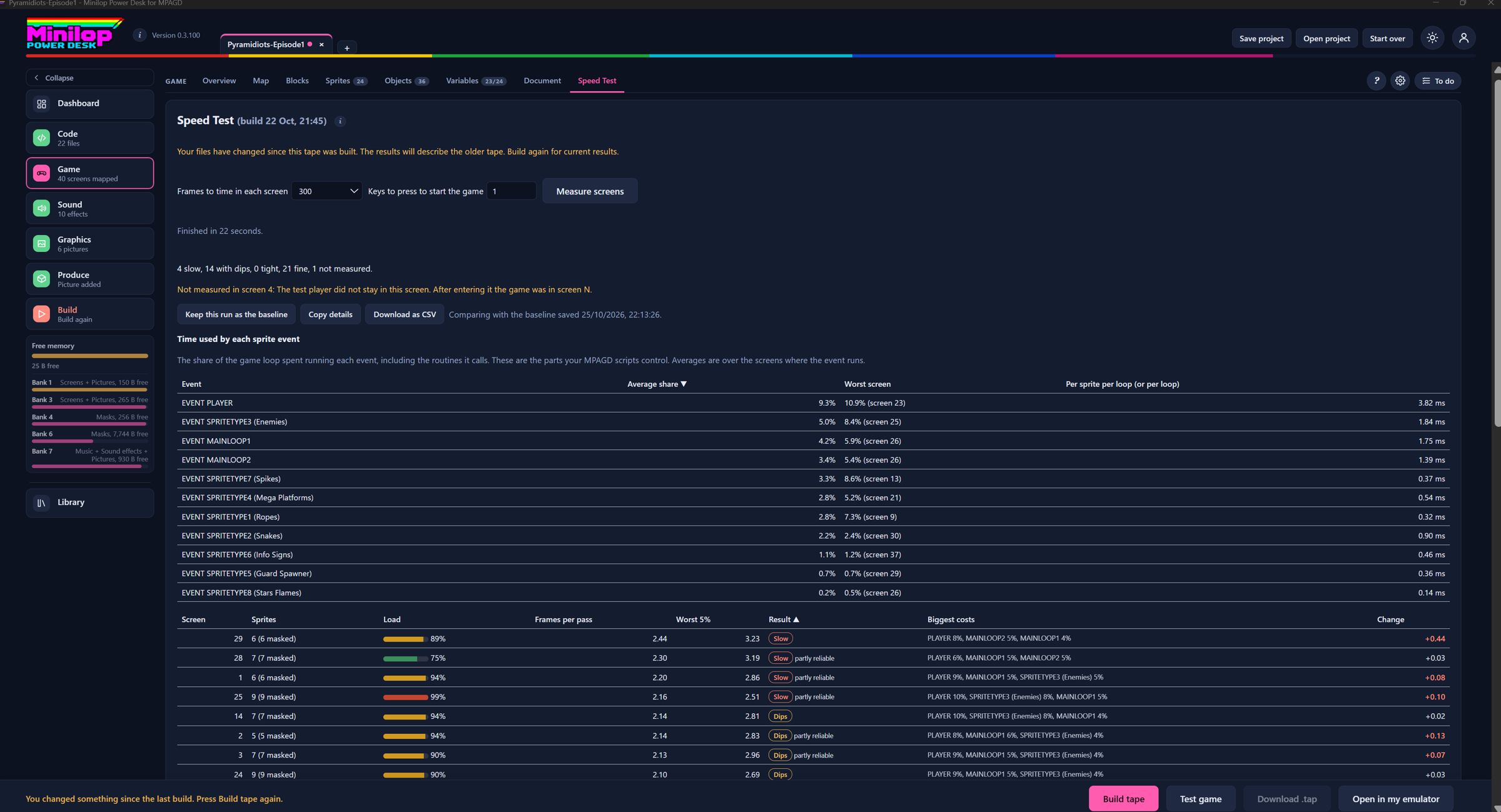
Runs the tape the Desk last built in its own emulator, visits every room on the map and times the main loop. Full speed is 2.00 frames per loop.
The table ranks rooms slowest first and names the biggest costs, such as a sprite type's events or masked sprite drawing.
Keep a run as the baseline, rebuild, measure again, and a Change column shows what each room gained or lost.
It is an emulator measurement, so use it to rank rooms and find the big costs, then check a slow room on real hardware. 128K builds only for now.
Game, Room speed
Masked sprites in spare banks
Sprites that sit in the scene, not in a square of background colour. Every frame can have a mask, held in the spare banks.
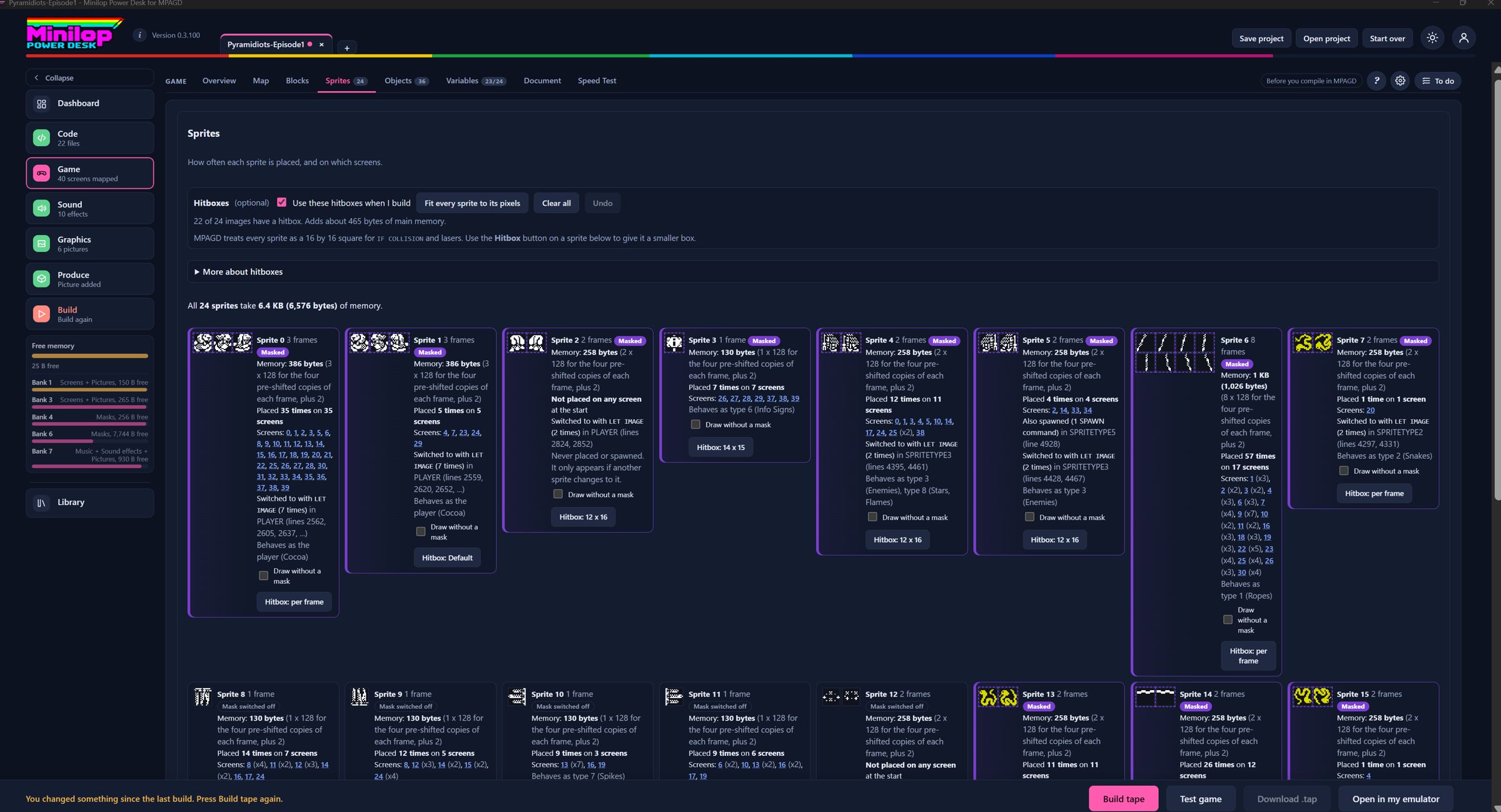
Masked frames are marked on the Sprites tab, so you can see which ones will be drawn with a mask.
Masks live in the spare 128K banks. Each bank holds masks for 42 frames, and no mask data stays in main memory.
Tick Draw without a mask on any sprite or object that should look transparent or glowing.
Game, Sprites
Big sprites
Build a boss to remember. A leader sprite and up to three pieces, such as 2 by 2 sprites of 16 by 16, move and draw together without tearing, with optional whole-shape collision for walls and hits.
MPAGD sprites are 16 by 16. Joining four into a 32 by 32 boss with separate scripts makes them tear. This routine joins them properly.
You move one leader sprite with its normal script. The Desk places the other pieces against it and, in builds without masked sprites, draws the whole boss in one go.
Draw the pieces as separate 16 by 16 images with consecutive numbers in reading order, and keep the boss wholly inside the play window.
Up to three big sprites, each up to 4 sprites across and 4 down. Optional whole-shape collision for walls, sprites and bullets.
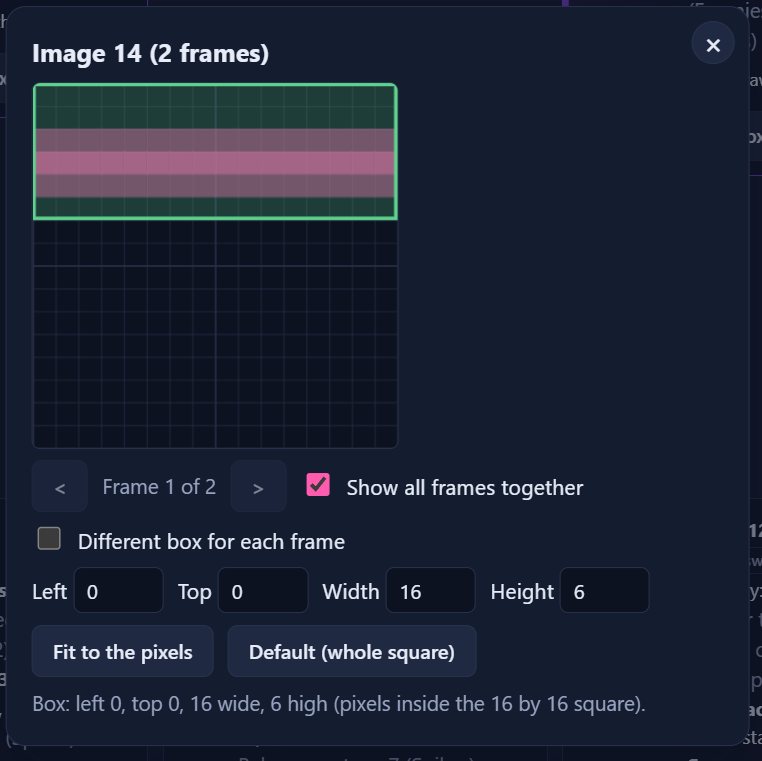
Stop dying to a sprite that never touched you. Draw a tighter collision box for any sprite image, even a different one for every animation frame.
MPAGD tests collisions with a 16 by 16 square. Hitboxes let you draw a tighter box for each sprite image.
Open the Sprites tab, press Hitbox on a sprite card, and drag on the grid. Fit to the pixels wraps the lit pixels for you.
You can give each animation frame its own box. Images with no box behave exactly as MPAGD normally does.
It costs about 250 bytes plus 4 per image, and works on 128K and 48K builds.
The hitbox editor for one sprite
Sprite blinking
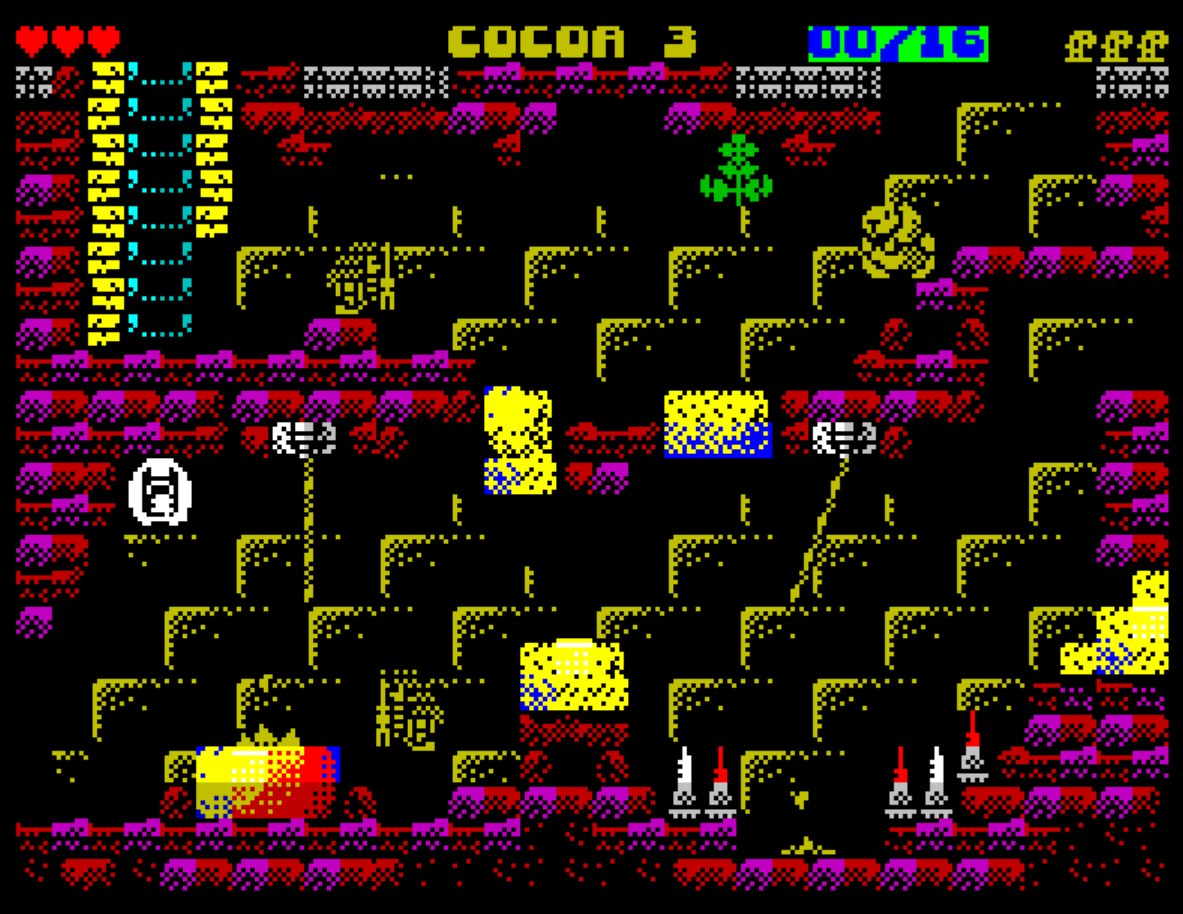
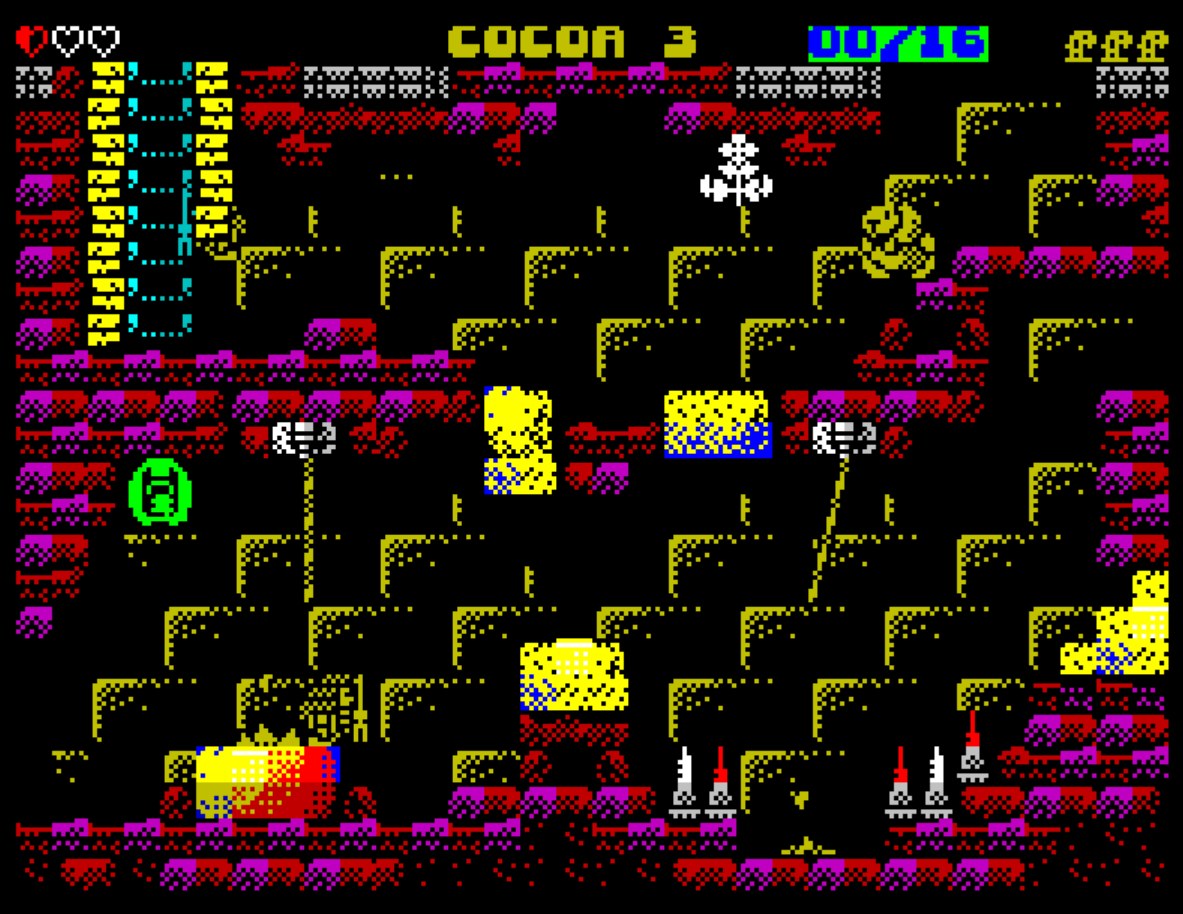
Flash an enemy when it is hit. A sprite blinks between two colours while one of its variables holds a value you choose, with up to four rules.
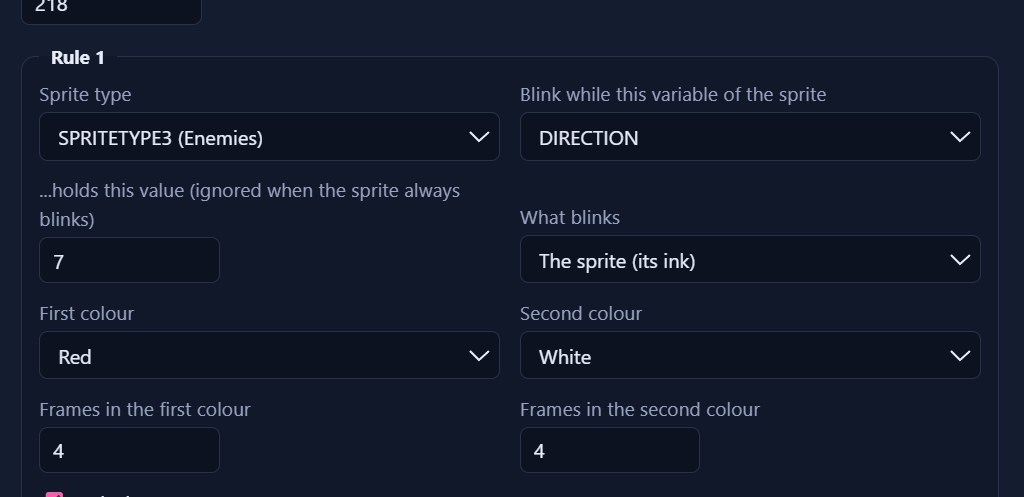
Tick it, give it a USER number (218 by default) and call that number once a frame from EVENT MAINLOOP2. It looks at all the sprites itself.
Each rule names a sprite type, one of the sprite's variables (DIRECTION, SETTINGA or SETTINGB) and a value. The sprite blinks for as long as the variable holds that value.
Choose what blinks: the sprite, its mask, or both. Pick two colours, how many frames to spend in each, and an optional BRIGHT. Up to four rules.
Colour on the Spectrum belongs to 8 by 8 cells, so the whole cell changes colour, not only the sprite's own pixels.
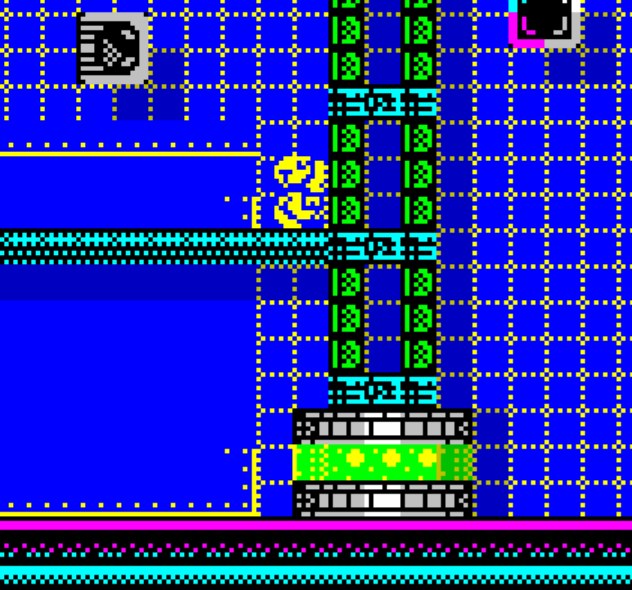
Cocoa 3: one colour phase of the blinkingCocoa 3: the other colour phaseSprite blinking, Rule 1 settings
User routine builder
Add features with no coding. Tick what you want from a library of ready-made routines, grouped by category. The Desk writes your user.asm, shows a USER number map and warns about numbers nothing handles.
Browse a library of routines grouped by category: screen transitions, colour effects, sprites and movement, pictures and text, music and stages.
Each routine is off until you tick it, has a USER number you can change, and shows its memory cost.
The USER numbers map shows what each number triggers and warns about numbers nothing handles.
The result is a user.asm for MPAGD, which you can save straight into your user routines folder.
Code, User routines
Walk-behind blocks
Let your heroes step behind the scenery, such as trees, pillars and doorways, even with masked sprites.
Sprites pass behind blocks of the types you choose. Tick any of Custom, Platform, Wall, Water, Fodder, Deadly and Ladder.
Only the draw order changes, so a Platform block still acts as a platform.
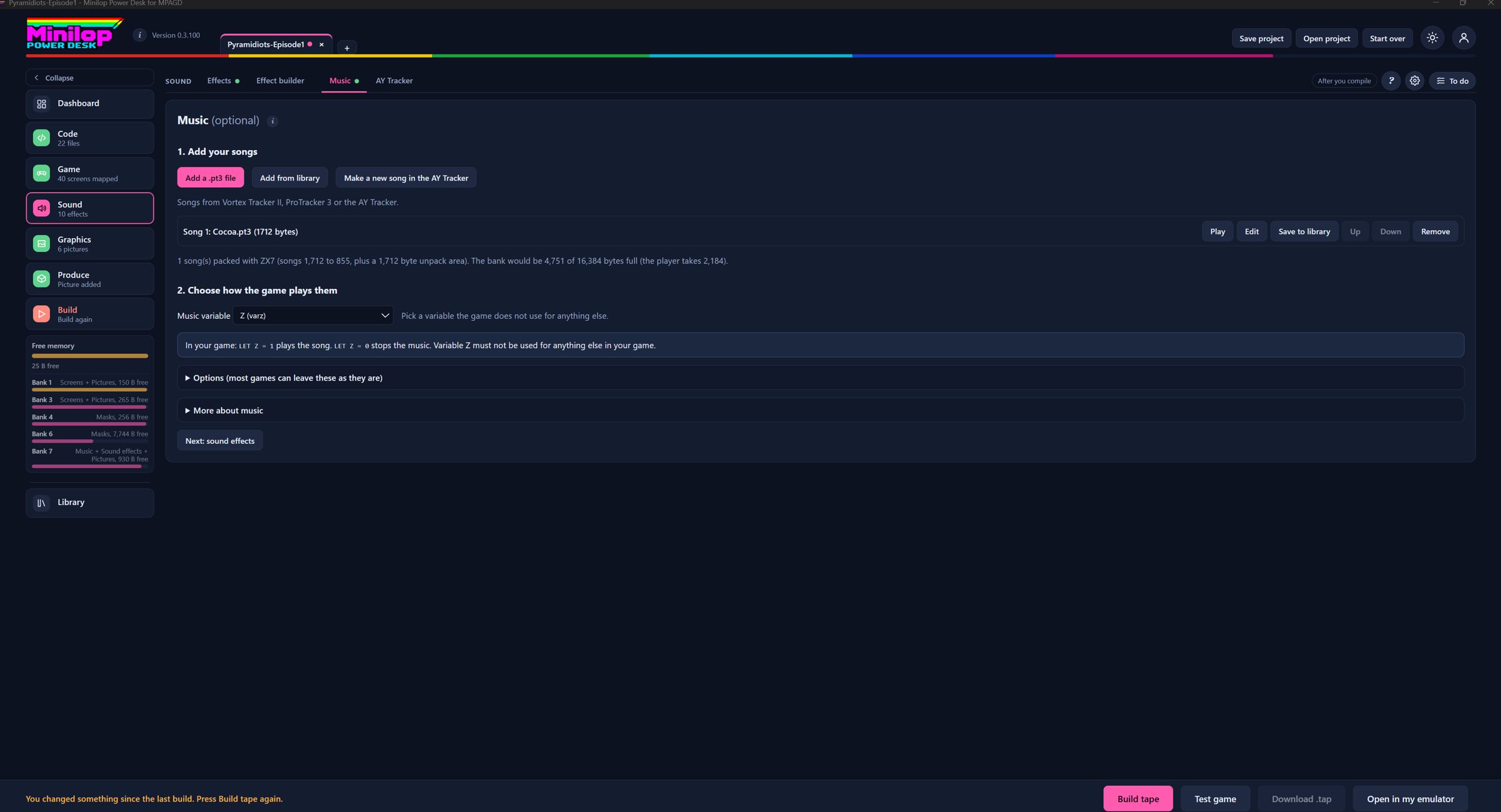
Give your game a soundtrack. Add Vortex Tracker II or ProTracker 3 songs, played from the frame interrupt and controlled from your script by one variable.
Add .pt3 songs from Vortex Tracker II, ProTracker 3 or the AY Tracker. Songs and the player go in a spare bank.
In your game, one variable controls the music: 0 stops it, 1 plays the first song, 2 the second, and so on.
Interrupt timing keeps the tempo steady for about 260 to 300 bytes of main memory. Optional ZX7 compression fits more songs in the bank.
Sound, Music
AY Tracker
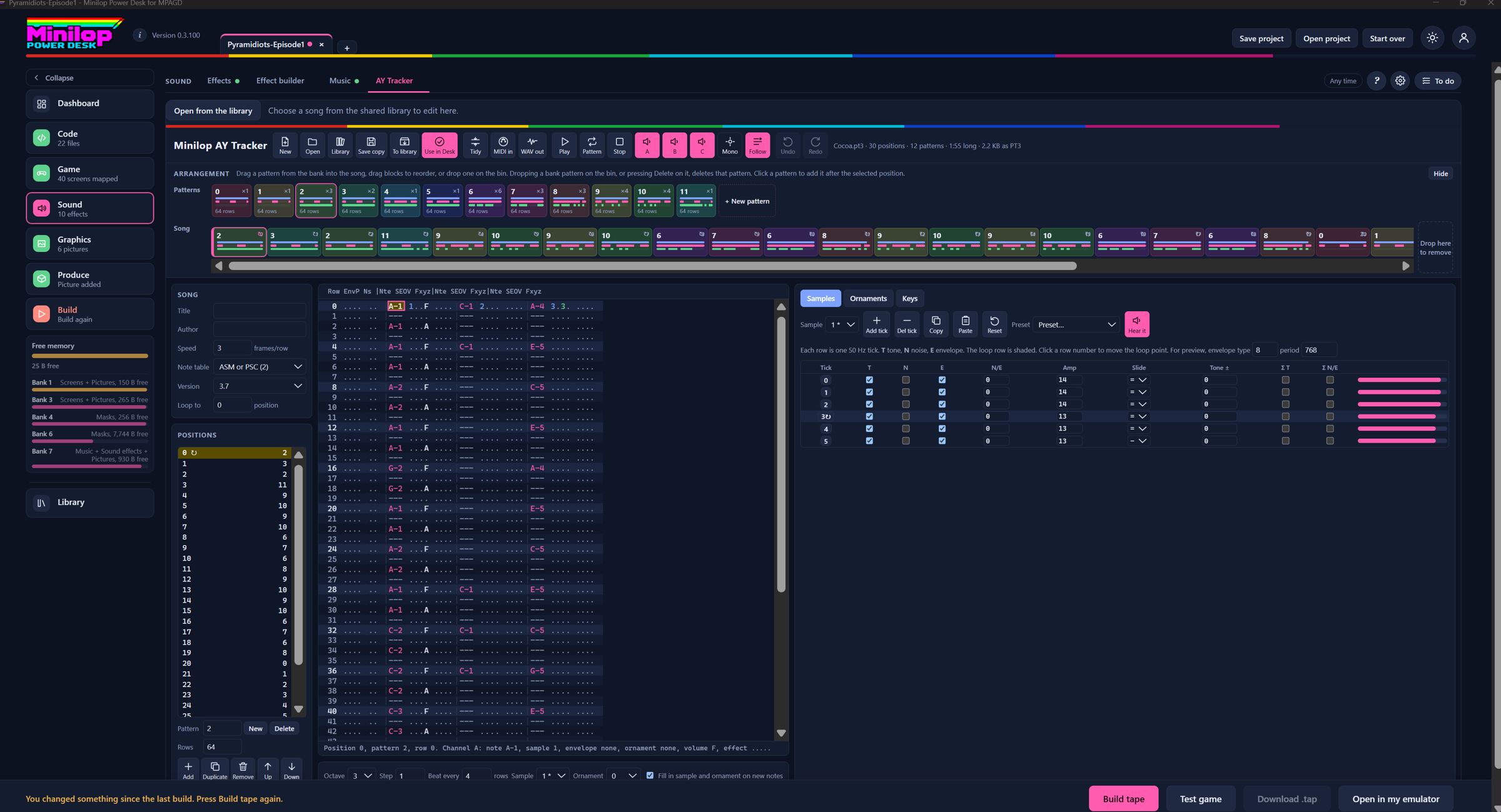
Write the tune yourself. Compose and edit PT3 songs inside the Desk, with a drag and drop song timeline. Simpler than Vortex Tracker II.
Write and edit PT3 songs without leaving the Desk, with a pattern grid, samples and ornaments.
Drag patterns from the pattern bank into the song timeline to arrange them.
It plays through the same PT3 player your game uses, so timing and effects behave as they do in a game.
It is simpler than Vortex Tracker II and has not been compared with it.
Sound, AY Tracker
AY sound effects
Keep using SOUND n, now with real AY effects. Add AY Sound FX Editor banks and choose which chip channels effects may borrow.
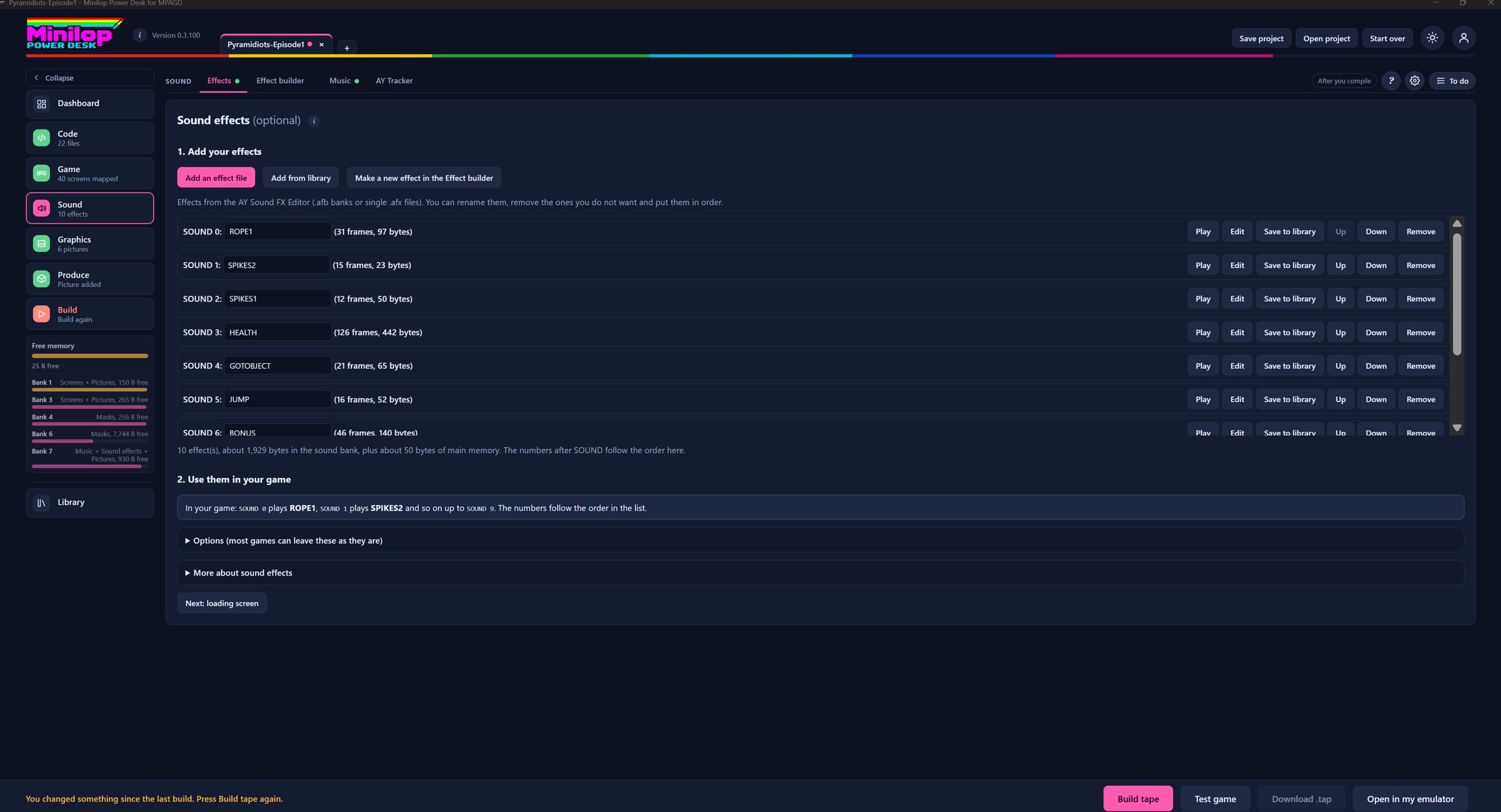
Add AY Sound FX Editor files (.afb or .afx). The order in the list is the SOUND number, starting from 0.
Tick only A, B or C to keep a channel free for the music.
Play gives a software preview. BEEP and CRASH are untouched.
Sound, Effects
Sound FX builder
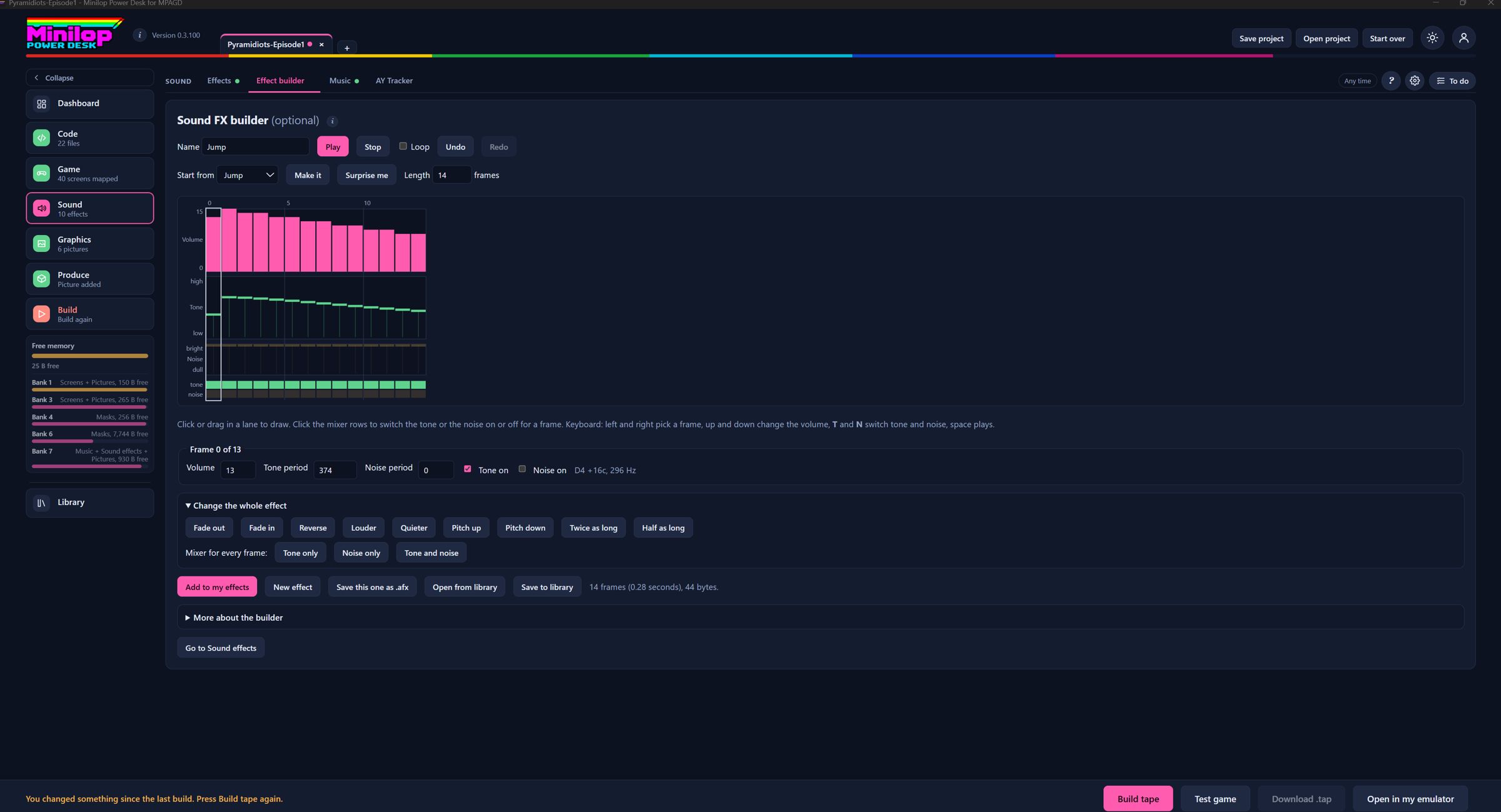
Design your own lasers and explosions. Draw an effect frame by frame, start from presets, preview it and add it to your game in one click.
Draw an effect frame by frame: volume, tone and noise for each fiftieth of a second, up to 5 seconds.
Start from presets such as Laser, Zap, Explosion, Jump or Pickup, or press Surprise me.
Add to my effects puts it on the end of your list, ready to play with SOUND.
Sound, Effect builder
Loading screen and BASIC loader
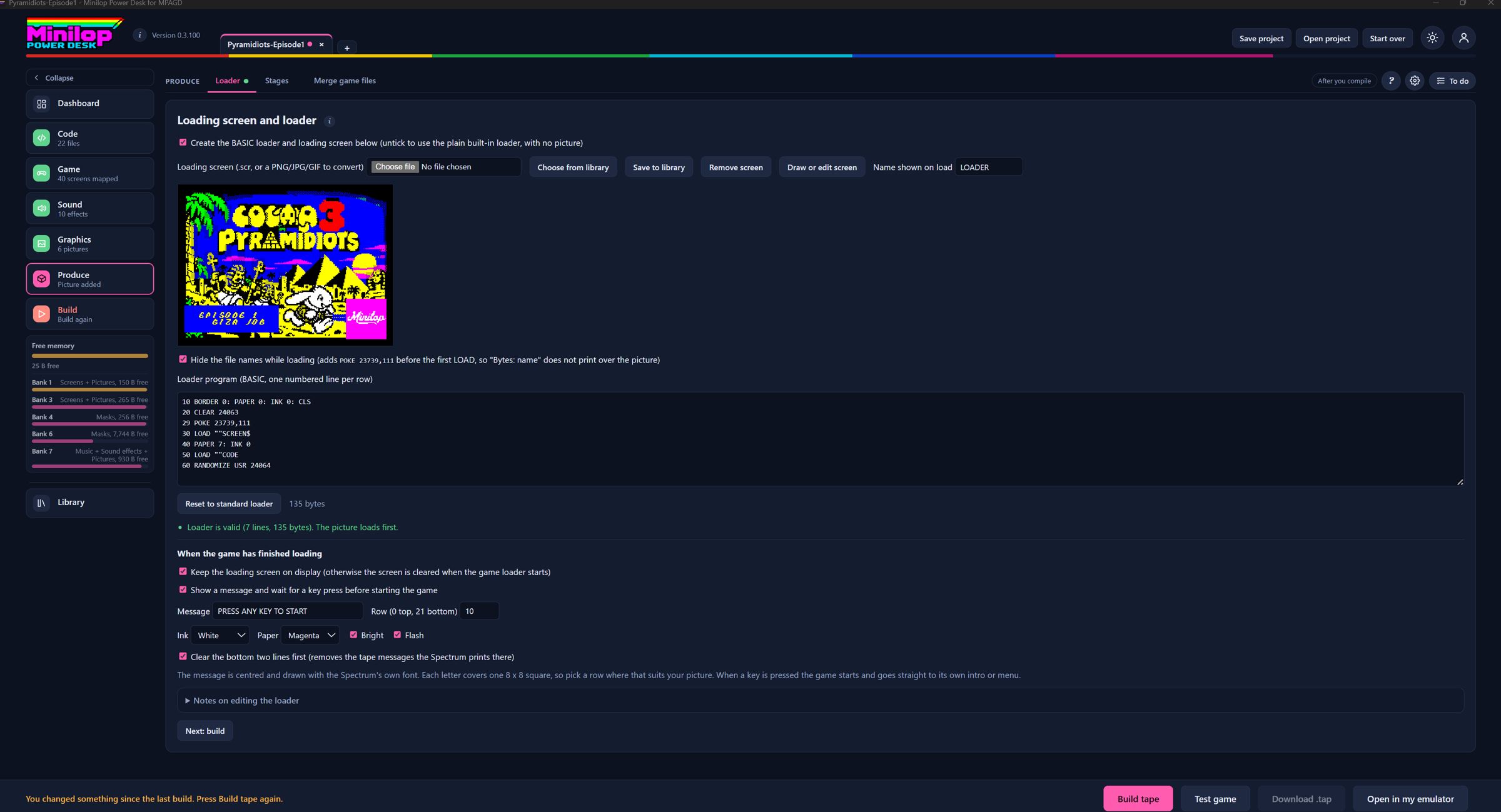
Make a loader that is yours. Edit the BASIC loader, choose your own loading screen and tape file name, and add a message and key wait.
Choose or draw your loading screen, set the tape file name and edit the BASIC loader.
The loader can wait for a key after loading, and can hide the file names while loading.
The screen can be drawn in the Screen Editor from this page.
Produce, Loader
Cutscene pictures
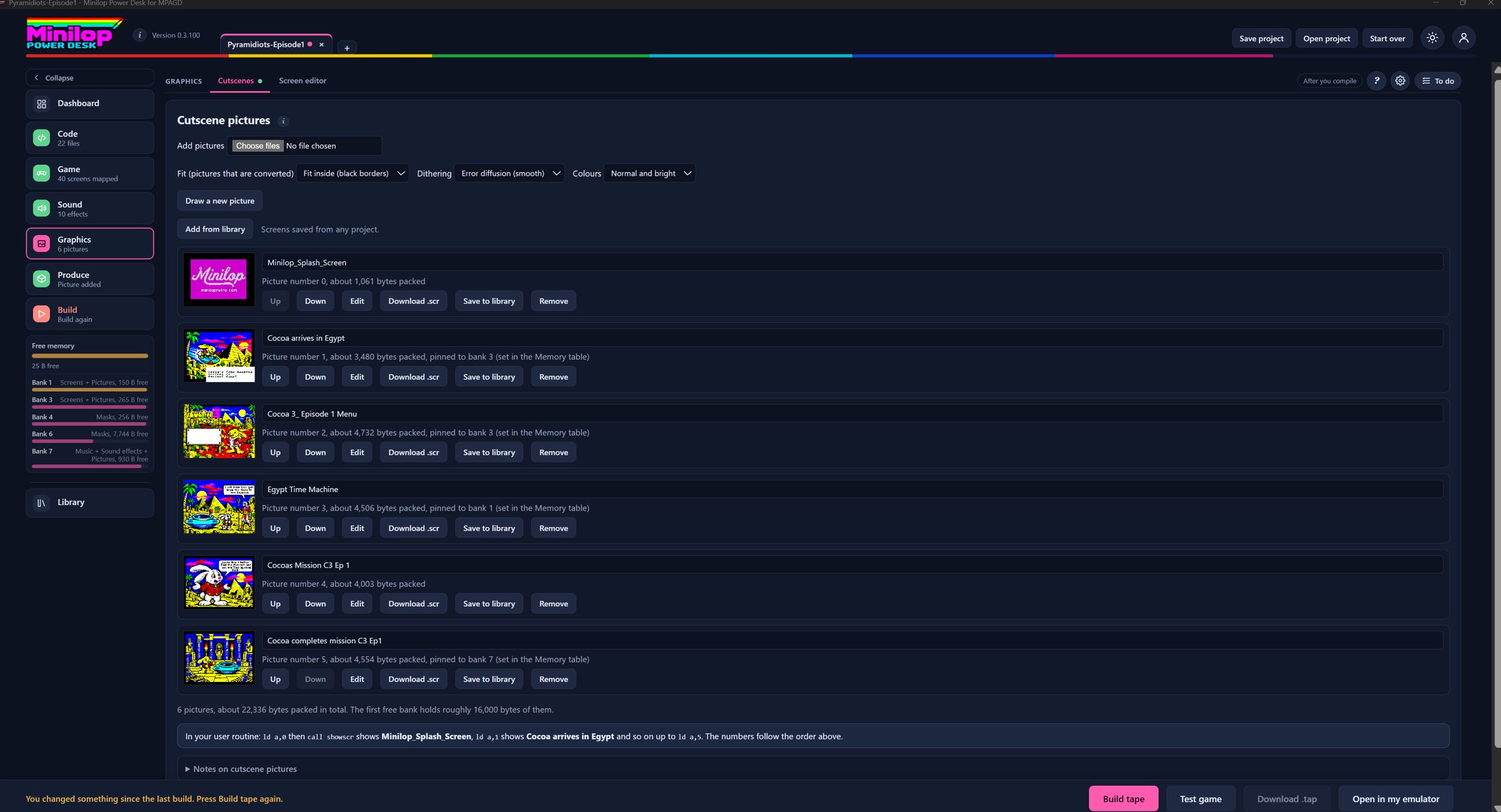
Tell the story in full-screen pictures from .scr, PNG, JPG or GIF files. Each can wait for a key or time itself.
Add full-screen pictures from .scr, PNG, JPG or GIF files, converted to Spectrum colour rules.
Pictures are compressed and kept in spare bank space. Each can wait for a key, not wait, or show for a number of seconds.
Show one with the Cutscene pictures routine and a USER number. A 48K game cannot use them.
Graphics, Cutscenes
Screen Editor
Draw a loading screen that follows the Spectrum's rules. A 256 by 192 pixel editor that keeps to the colour limits for you.
A 256 by 192 editor that follows the Spectrum's colour rules: one ink and one paper per 8 by 8 cell.
Tools include pencil, line, box, oval, fill with 45 patterns, text, cell attributes, selections and layers.
Import an image with dithering, then save a .scr or export a PNG.
Graphics, Screen Editor
Screen Editor image layers
Drop in a picture and move it about. PNG, JPG or GIF images come in as movable layers matched to Spectrum colours.
Import onto screen adds a PNG, JPG or GIF as a movable layer, with a size box and a transparency choice.
Layers float above the drawing. Merge them down or flatten them when you are happy.
Cells still follow the Spectrum rules: at most two colours and one brightness per 8 by 8 cell.
Graphics, Screen Editor
Screen Editor text tool and fonts
Put words on your screens in any Spectrum font. A text tool with a font picker, .ch8 font files and a built-in font editor.
Type text, pick a font and click the screen to place it. Snap to cells keeps it on the 8 by 8 grid.
Load .ch8 font files, the format MPAGD uses, or edit a font in the built-in font editor and save it back.
Graphics, Screen Editor
Script editor
A code editor that knows MPAGD. Edit events.a00 to a20 and events.msg with colour coding, folding, per-file undo and careful saving that only writes what changed.
Edits events.a00 to events.a20 and events.msg, with colour-coded commands using the compiler's own word list.
IF, WHILE and REPEAT blocks fold, and the status line tells you if blocks are balanced.
Find bar, replace in all files, and a checker that follows the compiler's rules as you type.
Only changed files are written, after a dated backup, and the app keeps a history of each file.
Code, Event scripts
Usages, Outline and Variables
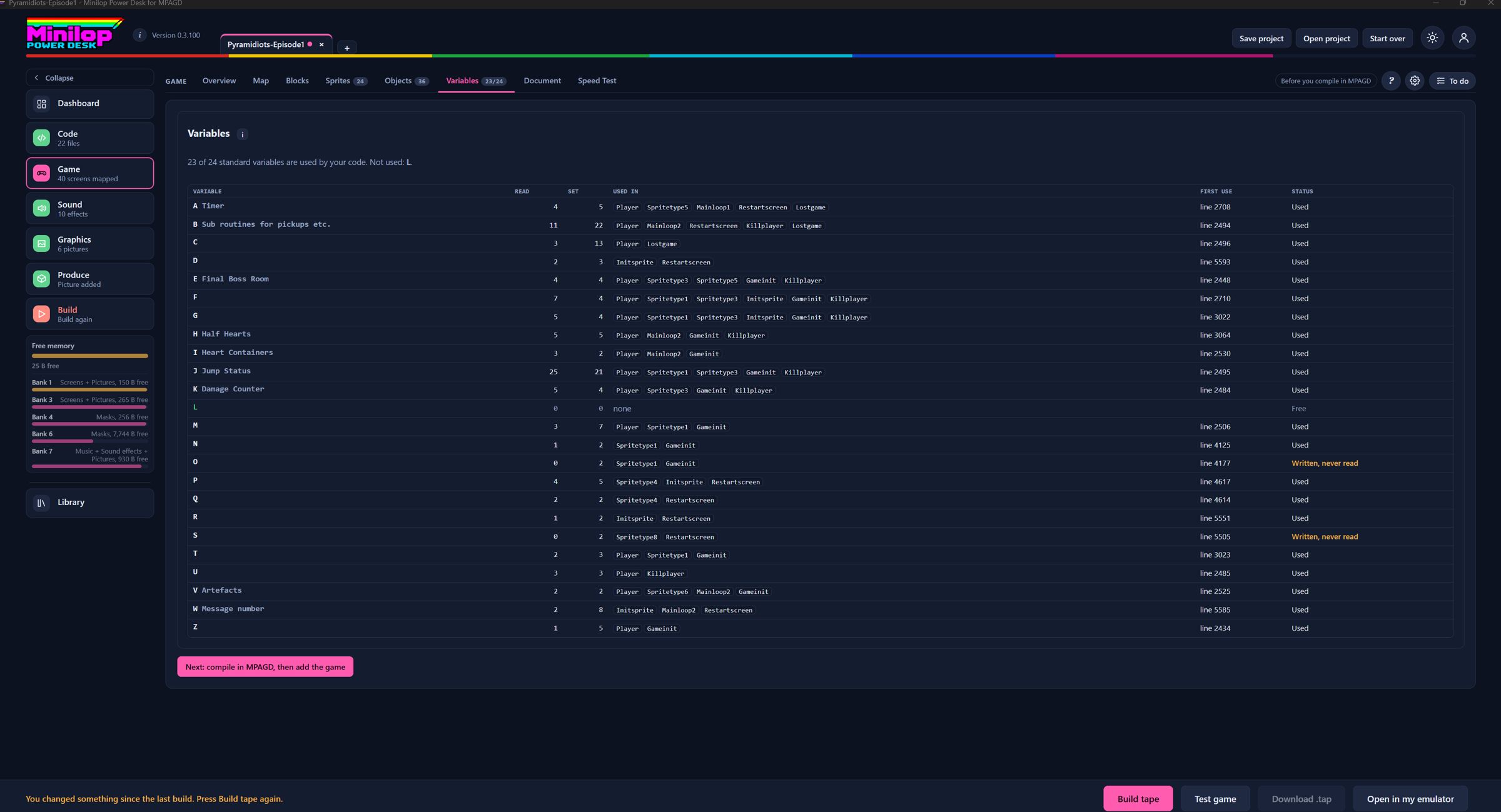
See where everything is used. Every place a variable, USER number, message or command appears, with counts.
Usages lists every place a variable, USER number, message number or command is used.
Outline shows the sections of the open script from its comment banners.
The Variables table shows how many times each variable is set and read, so you can spot ones that are never used.
Game, Variables
Variable and sprite type labels
Give variables and sprite types memorable names that show in the editor and reports without changing your scripts. Copy labels from another open project.
Give variables A to Z memorable names, and name the player and each sprite type.
Labels show on hover, in Usages, in Game review and in the pickers throughout the Desk.
They live in the project file, so your scripts are never changed.
Code, Labels
Dashboard
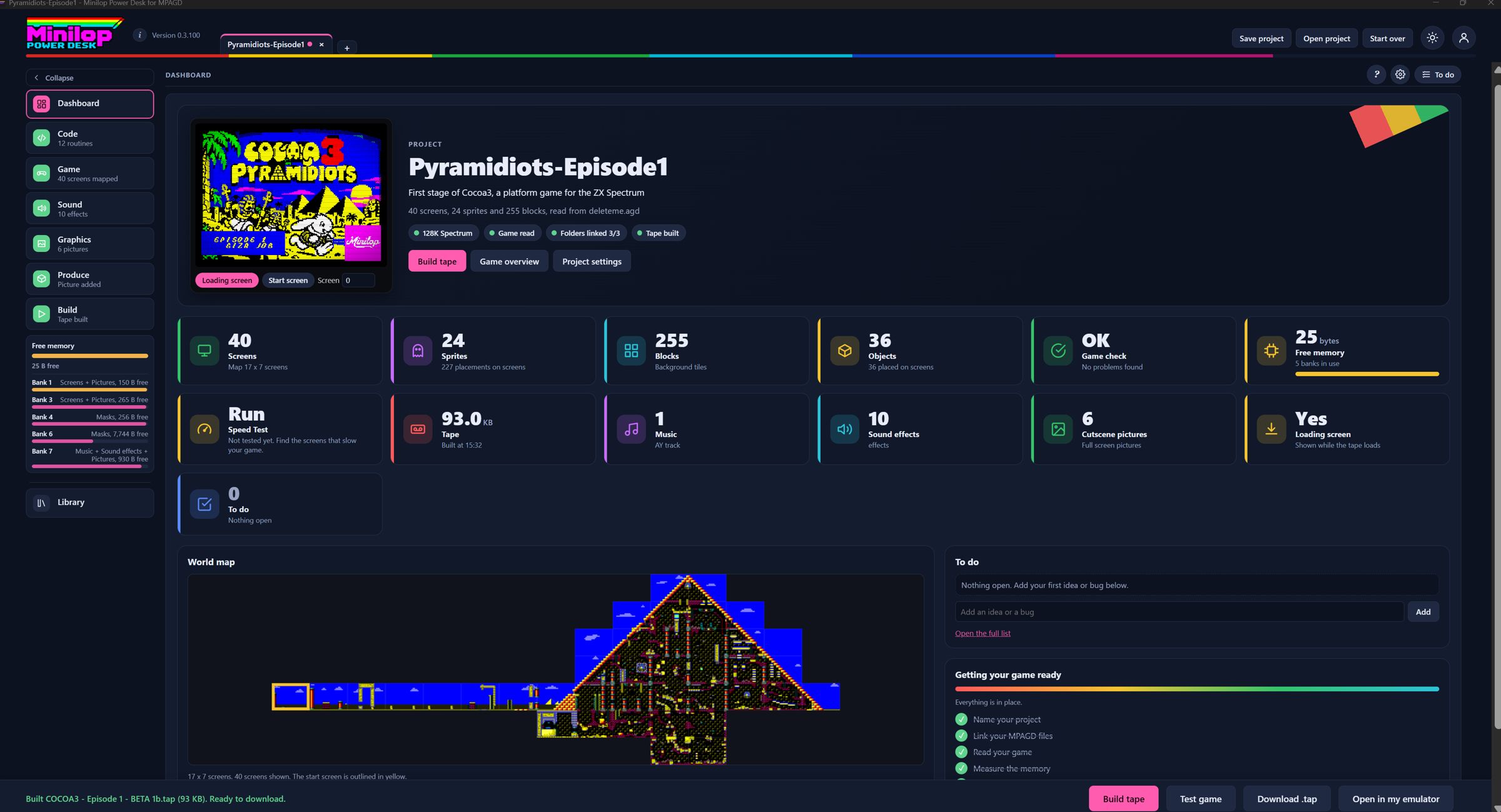
Your game at a glance. A first page with your game's picture and numbers: screens, sprites, blocks and more. Each tile opens the matching tab.
The first page of a project: your loading screen or start screen, the project name and badges for what is ready.
Stat tiles show screens, sprites, blocks, objects, free memory, tape size, music and more. Click a tile to open its tool.
It also shows a world map, your top to do items and a checklist for getting the game ready.
The Dashboard
Map
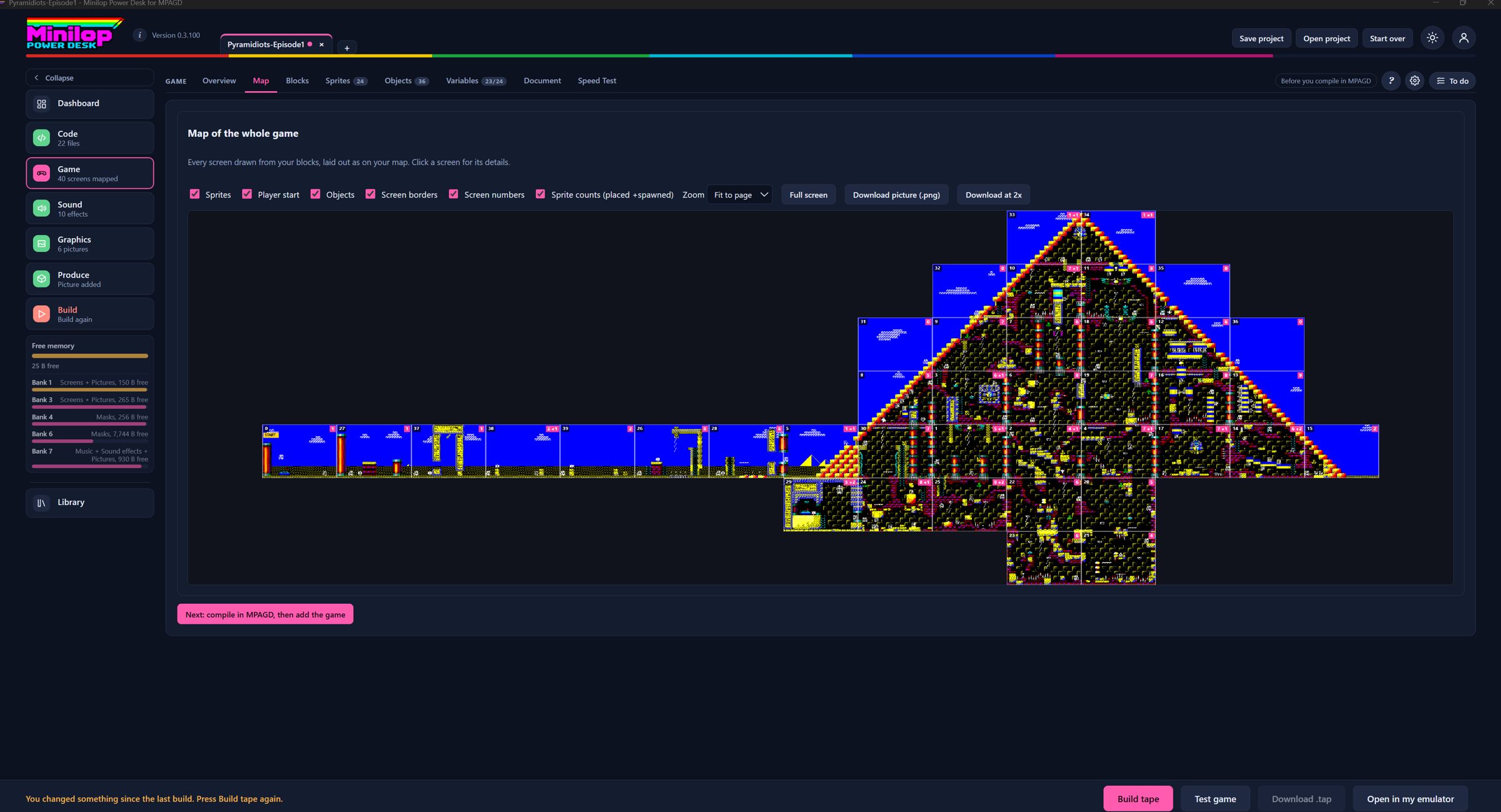
See your whole world. Every screen is drawn from your blocks and laid out as on your MPAGD map, with sprites, objects and borders, and PNG export.
Every screen drawn from your blocks and laid out as on your MPAGD map.
Tick boxes show sprites, the player start, objects, borders and screen numbers. Click a screen for its details.
Zoom in full screen, or download the map as a PNG.
Game, Map
Sprite and object reports
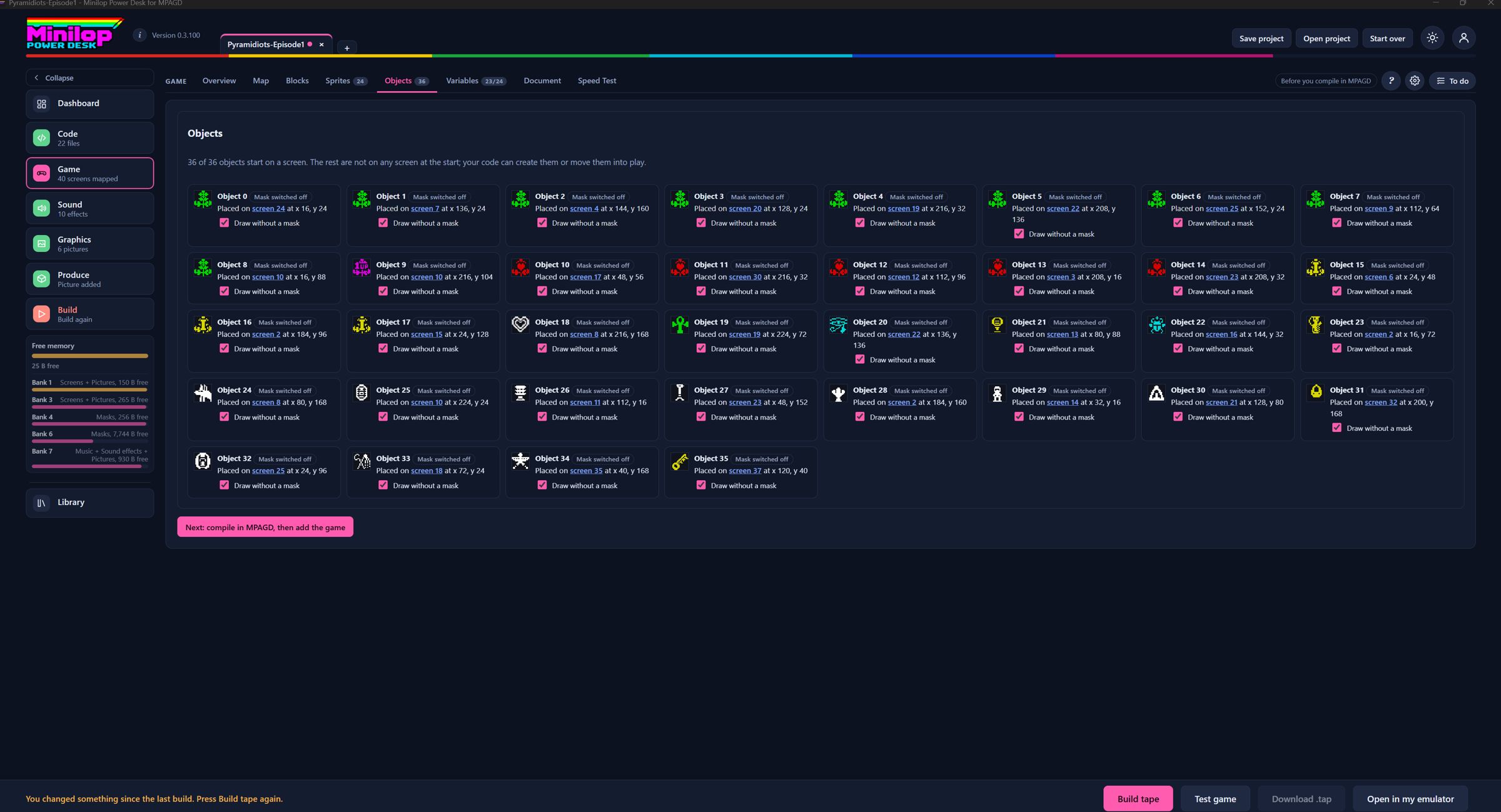
Know where everything is. See where each sprite and object is placed or spawned, and which ones look unused.
Sprites: where each sprite is placed or spawned, and which ones look unused.
Objects: the screen each starts on and its position.
Masked frames are highlighted, and each sprite card has its Hitbox button.
Game, SpritesGame, Objects
Block use counts
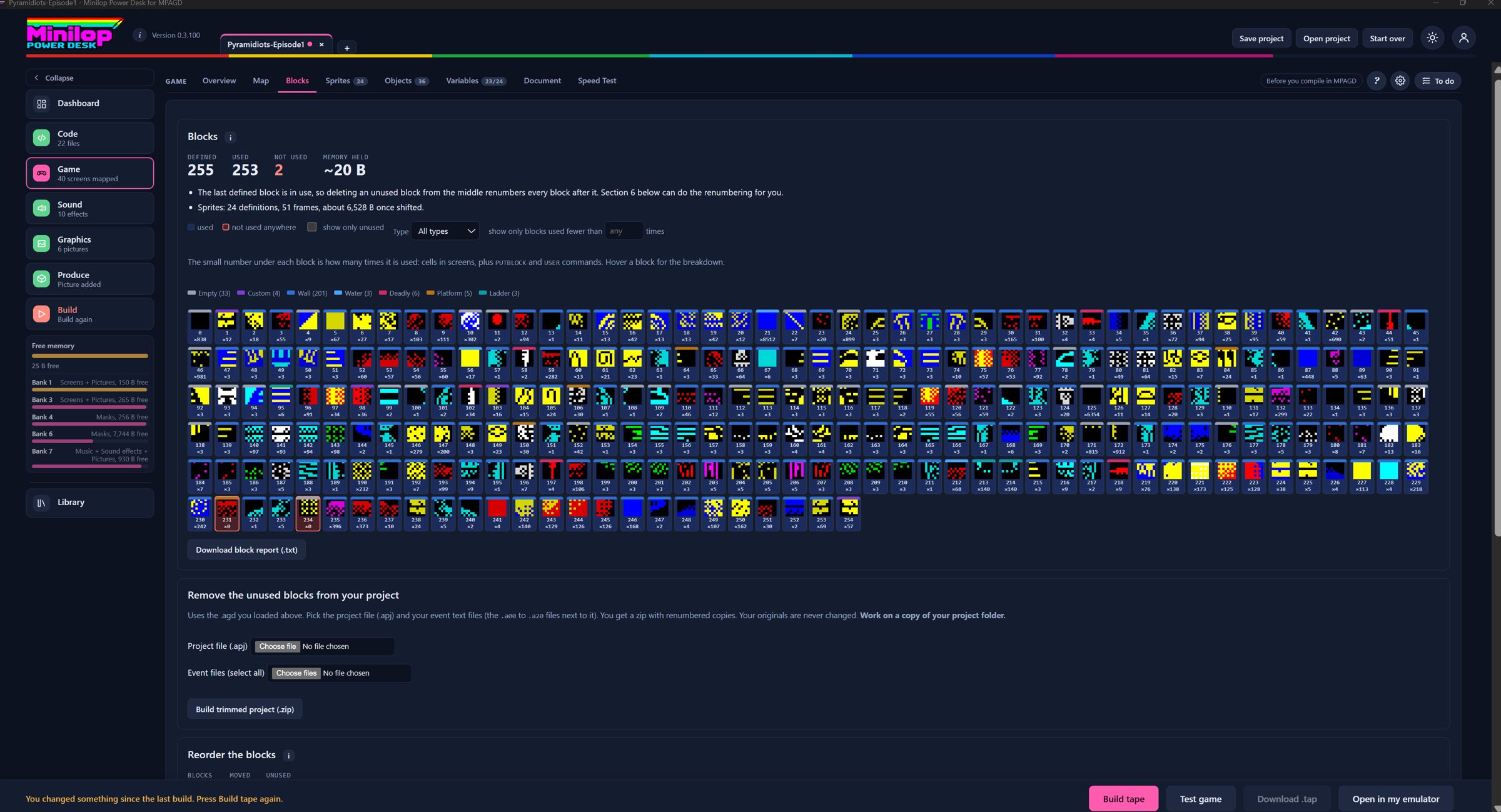
See which blocks earn their place. How many times each block is used, with a filter for blocks used fewer than a number of times.
Every block shows how many times it is used across screens, PUTBLOCK and USER commands.
A coloured bar shows each block's MPAGD type, with a Type filter. Click a block for a large preview and where it is used.
From here you can also remove unused blocks or reorder blocks, with scripts renumbered to match.
Game, Blocks
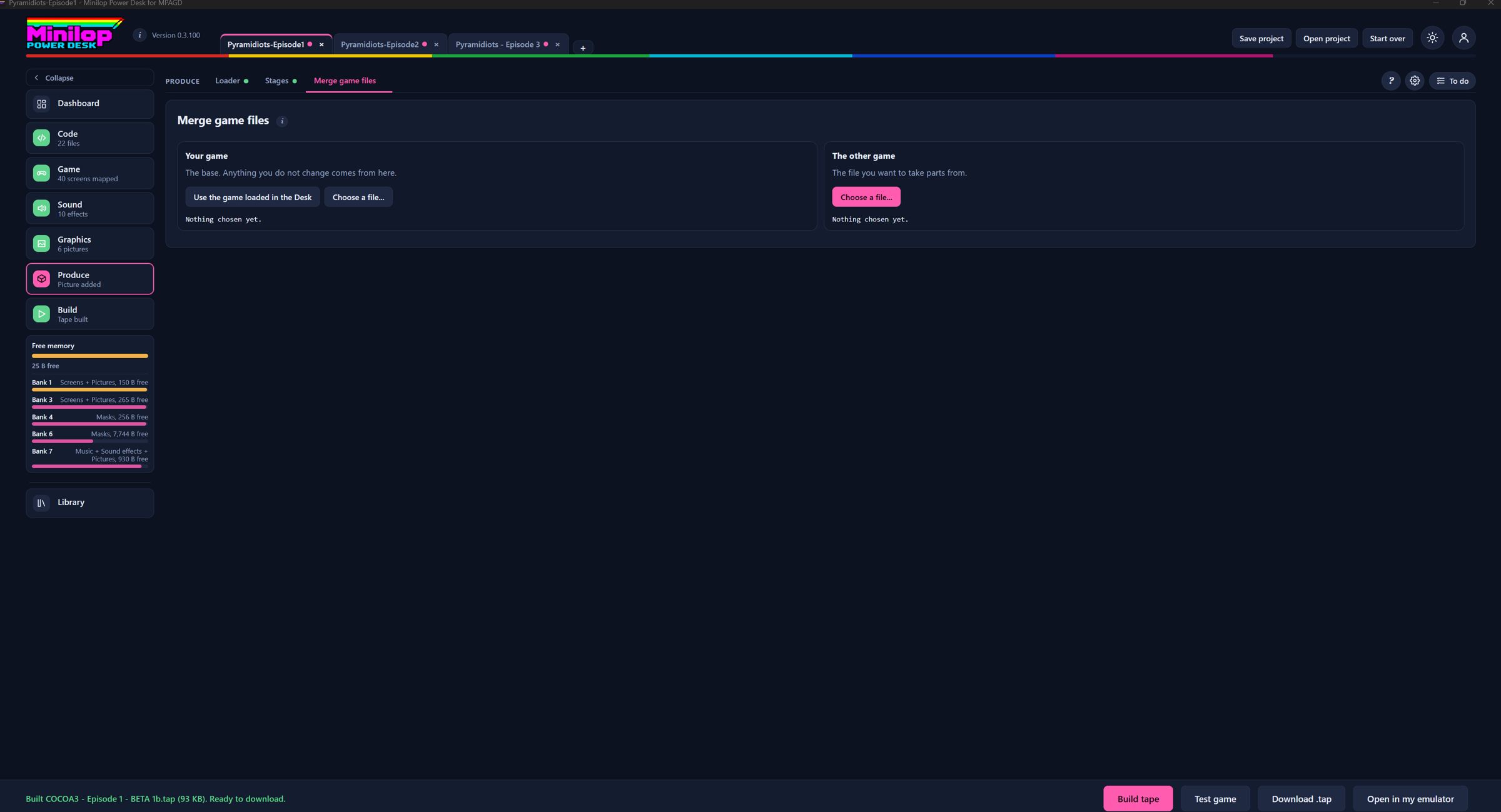
Merge game files
Combine the best of two games. Builds a new .agd from the parts of two game files, for example to bring screens from one stage into another, with checks.
Builds a new .agd from the parts of two game files. For each part, choose which file supplies it.
Quick choices include everything from the other file but keep my event scripts, or only the look.
A checks list compares numbers such as screens against the window and blocks. It cannot tell whether your scripts still make sense, so test the result.
Produce, Merge game files
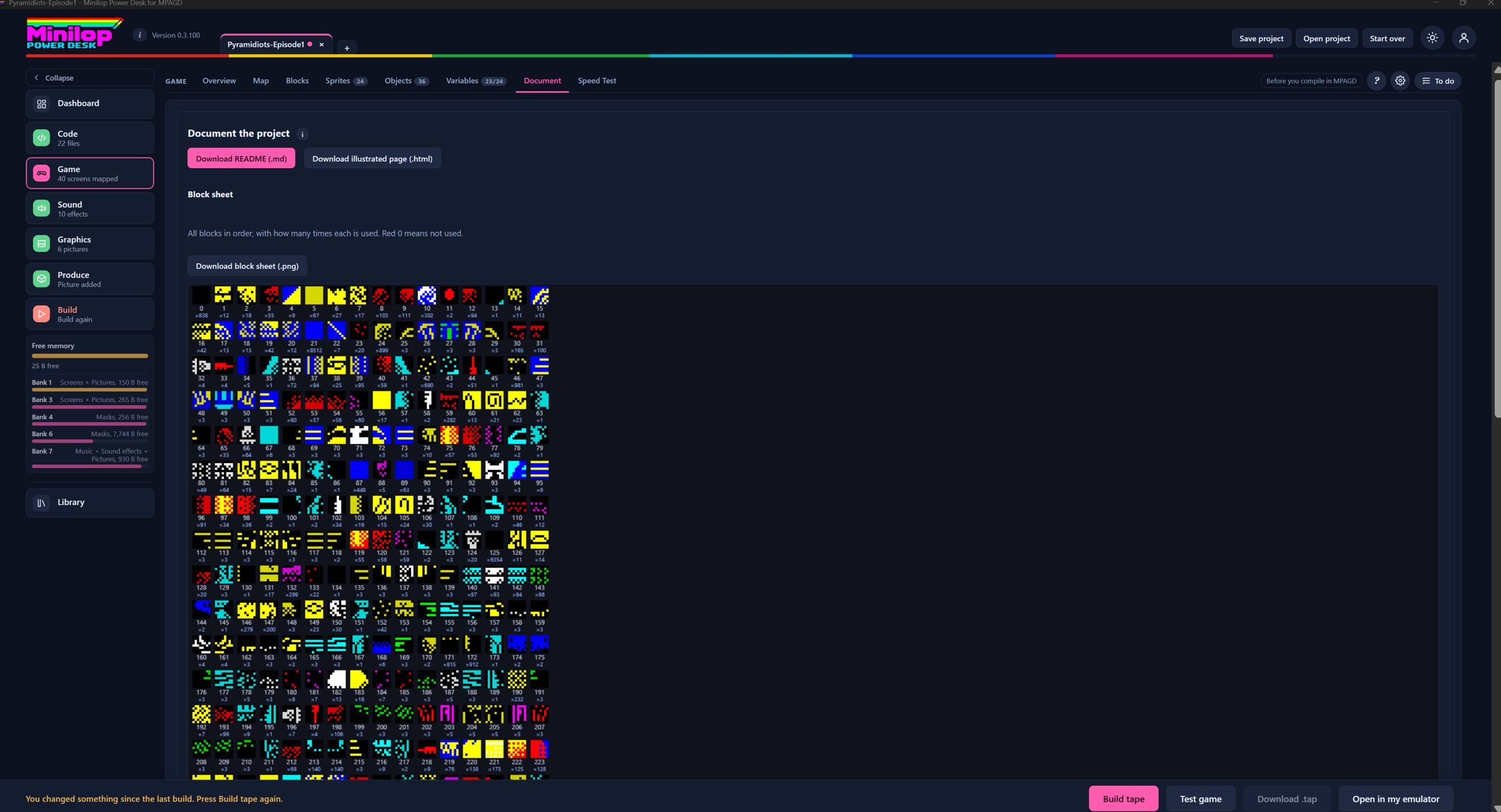
Document the project
Documentation in one click. A README and picture sheets of every block and sprite frame.
One click makes a README, a single-page document.html, a picture of every block with its number and use count, and a picture of every sprite frame.
It is read-only, so it never changes your project. English only for now.
Game, Document
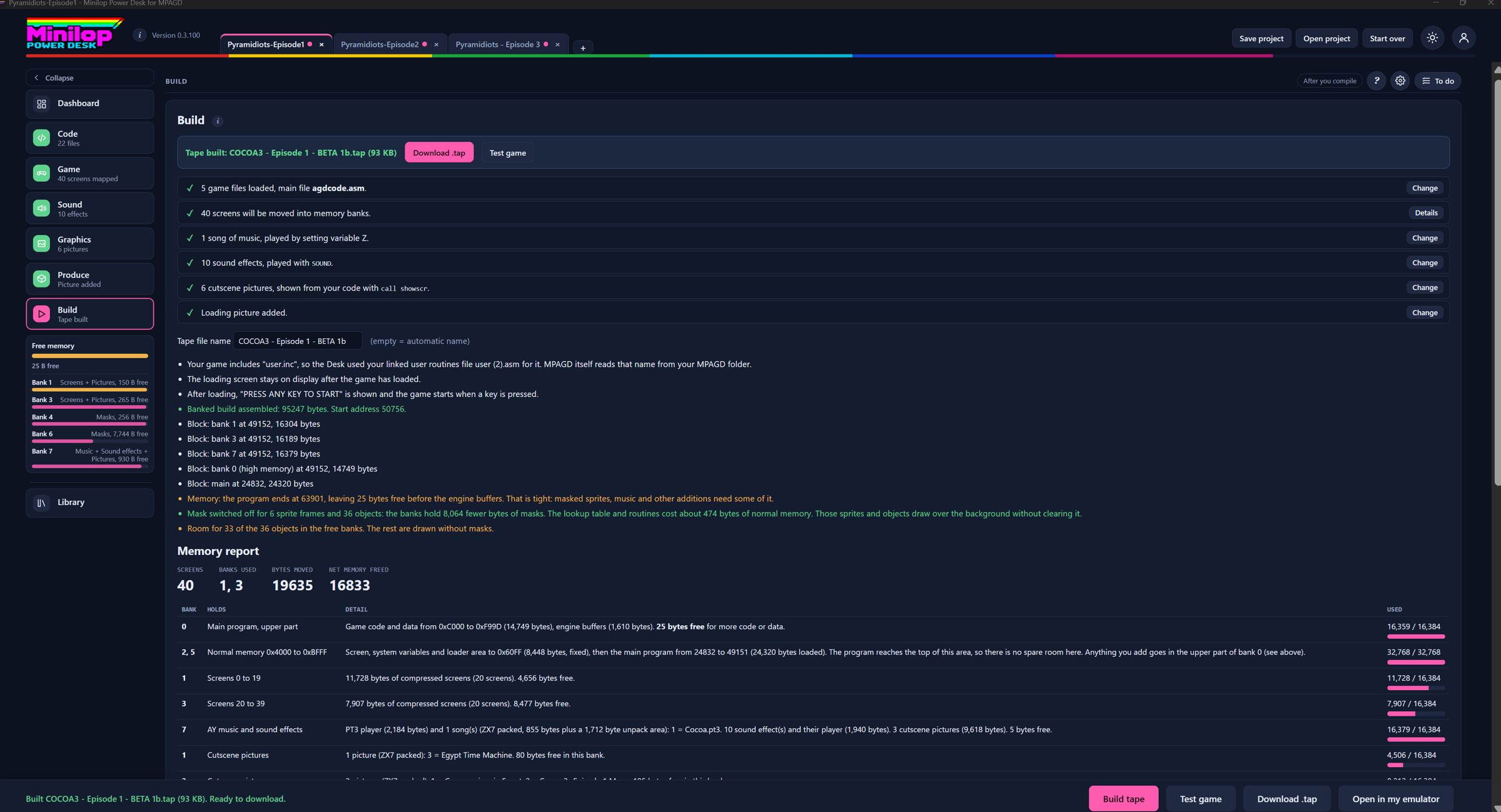
Tape building
From compile to tape in a click. Builds a .tap with an editable BASIC loader, ready to load. It says clearly when the main file is not a compiled game.
Press Build tape and the Desk banks the screens, adds music, effects, pictures and masks, and builds a .tap with your loader.
The tape notes show where your program ends and how many bytes are free. If it is too big, the Desk says by how many bytes and suggests what to try.
Then Download .tap, Test game in the built-in emulator, or Open in my emulator.
Build
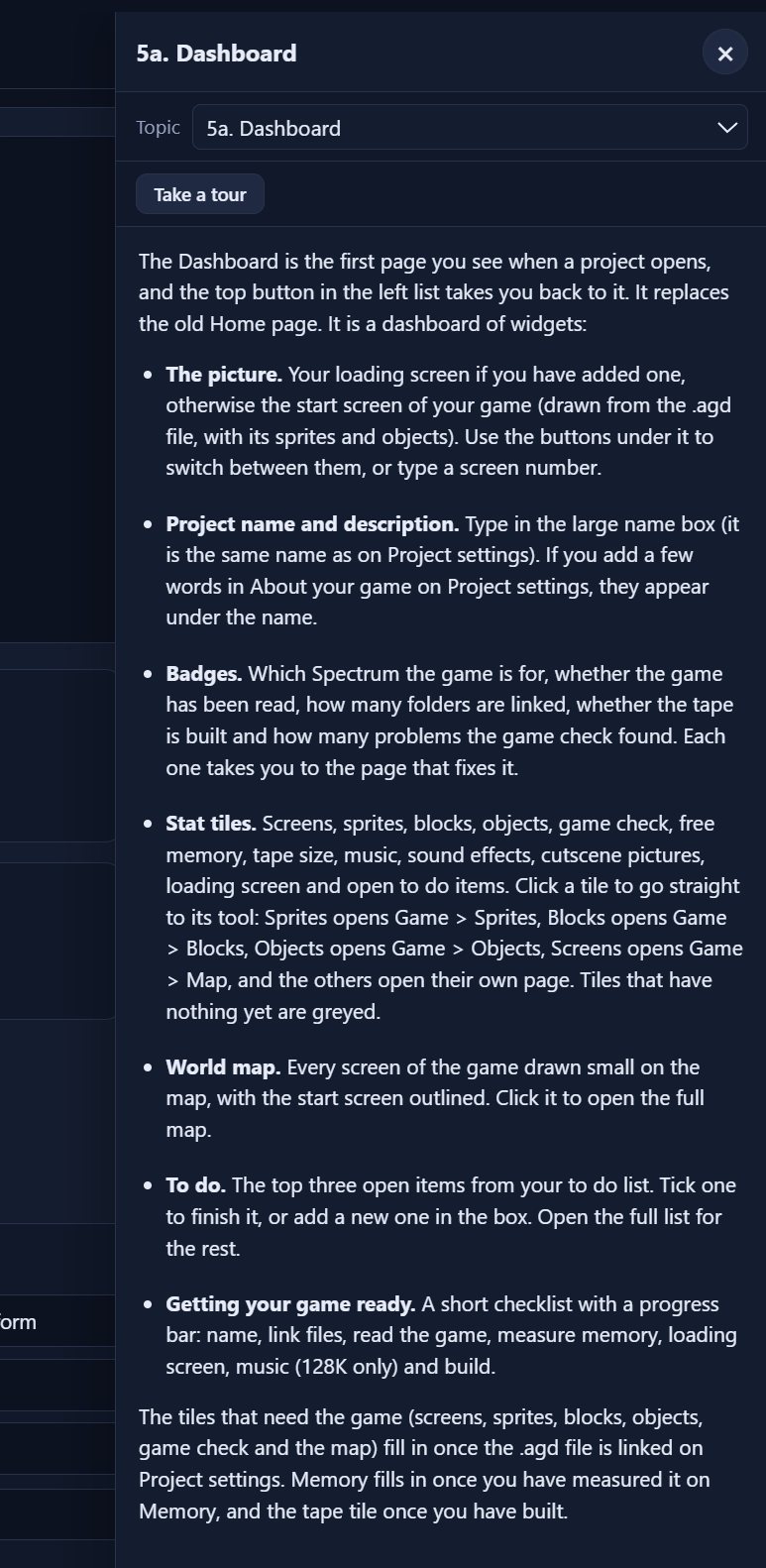
Built-in help
Help right where you are. A ? button on every page (or F1) opens the user guide at the part for the page you are on, in English, Spanish and Portuguese.
The round ? button, or F1, slides the user guide in from the right, opened at the part for the page you are on.
It follows you if you change page, and has a topic list. It is available in English, Spanish and Portuguese.
The built-in help panel
To do list
Never lose a good idea. A list for ideas, bugs and jobs in every project, saved in the project file.
Every project has its own list of ideas, bugs and jobs, opened from the To do button at the top right of every page.
Each item remembers the page you were on, so you can jump back to it.
It is stored in the project file, so Save project keeps it.
The To do list
Where the bytes go: Cocoa 3 as an example
Cocoa 3 filled MPAGD's memory, which is what the Power Desk grew from. This is where it can give space back, and what it did for Cocoa 3 where we have measured it.
Part of the game
Normally
With the Power Desk
In Cocoa 3
Level screens
Compressed screen data sits in main memory.
Moved into the spare 128K banks and paged in as the player walks.
5,744 bytes of screen data moved, freeing about 5,200 bytes of main memory.
Sprite masks
Every masked frame is 384 bytes of main memory.
Held in a spare bank, 42 frames to a bank, with only what each moving sprite needs copied in.
No mask data stays in main memory. About 7 to 9 per cent more time in tests.
Music and sound effects
Songs and effects compete with the game for memory.
Songs and effects live in a spare bank. Only the player stays in main memory.
The PT3 player takes about 260 to 300 bytes of main memory.
Engine code
The whole MPAGD engine is included, used or not.
The Engine Trimmer removes routines your game never calls, from your own copy of the engine.
Estimated from your game file, exact from the compiled .asm.
User routines
Every routine you add takes space.
Only the routines you tick are written to user.asm, each with its cost shown.
Depends on the routines chosen.
The whole game
One program has to hold every level.
Split a big game into stages, each its own MPAGD game, joined on one tape.
Each stage gets a full memory of its own.
Built because one game needed it
MPAGD gets a game running quickly. As the game grows, the jobs around it take the time: running out of memory, finding what is unused, keeping scripts tidy, adding music, and building a tape that loads properly. The Power Desk started with Cocoa 3 and grew from what that game ran into.
You compile in MPAGD as you always do. The Desk reads the result and the folder your project lives in. It does not replace MPAGD, and it only writes to your project folder when you ask it to, with a dated backup made first.
How it fits with MPAGD
PrepareDrag and drop the features you need and create your User Routine file with no coding. Over 30 routines to play with.
Compile in MPAGDPower Desk works hand in hand with MPAGD and enhances your MPAGD game.
Add the extrasMusic, sound effects, cutscene pictures and a loading screen, ready to run.
Build the tapeThe Desk builds the .tap with a loader you can edit. Even create multi stage games by combining multiple .tap files to extend your gameplay.
Test and downloadRun it in the built-in emulator, then download the .tap. Professionally produced in no time.
See it running
Demo videos from the Power Desk beta. Each one loads from YouTube only when you press play.
Creating a multi-stage game
Several MPAGD games joined into one tape, with values carried from stage to stage.
4-way scroller, proof of concept
A first look at scrolling in four directions.
Horizontal scrolling shoot 'em up
A side-scrolling shooter made in MPAGD with the Power Desk.
Scrolling shoot 'em up demo
A longer walk through a scrolling shoot 'em up.
Big sprites and boss battles
Boss-sized sprites in MPAGD.
Animated blocks
Blocks that animate in the game.
Walk behind blocks
The player walking behind scenery.
Upgrading Cocoa and the Time Machine
A full demo of upgrading an existing game with the Power Desk.