
Power Desk · Guided tour
The Blocks page
See every block in your game, how often it is used, and how to remove the ones you do not need. Take a short tour of the screen.
Step 1 of 12
See every block in your game
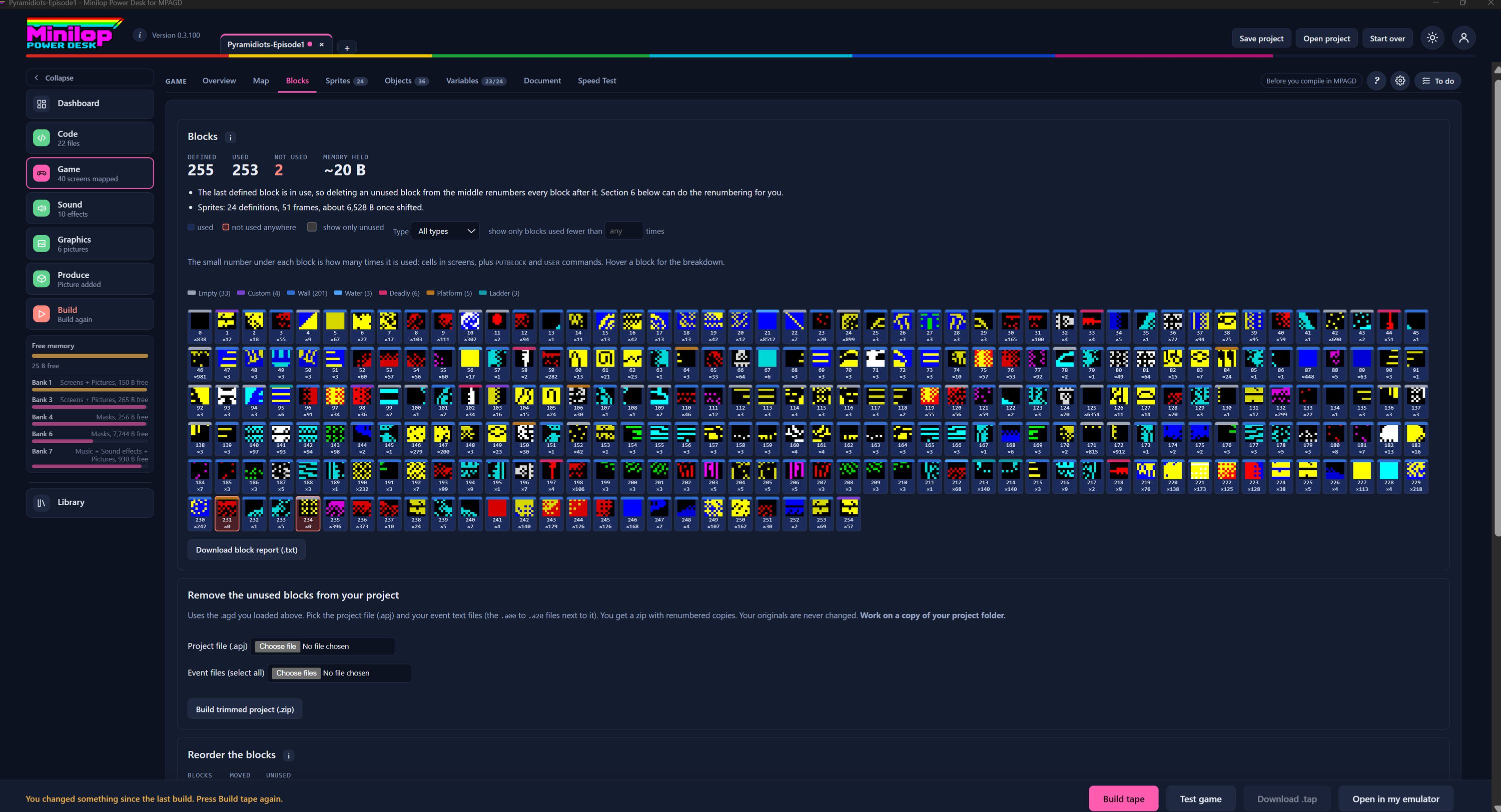
The Blocks page shows every block you have defined, how often each one is used and how much memory they hold. It also helps you clear out blocks you no longer need. Use Next, or the numbers, to walk round the screen.
The Game tabs
Blocks is one of the Game tabs, beside Overview, Map, Sprites, Objects, Variables, Document and Speed Test. The small numbers on some tabs count the sprites, objects and variables in your project.
The headline numbers
Four figures sum it up: how many blocks are Defined, how many are Used, how many are Not used, and the Memory held by the ones you could remove. In this game 253 of 255 are in use.
What the numbers mean for you
These two lines explain the result in plain words. If the last defined block is in use, deleting an unused one from the middle renumbers every block after it, and a later section can do that renumbering for you.
Filter the blocks
Tick or untick used and not used anywhere, show only unused blocks, pick a Type from the list, or show only blocks used fewer than a number of times you choose.
How the count works
The small number under each block is how many times it is used: cells in screens, plus PUTBLOCK and USER commands. Hover over a block to see the breakdown. The coloured key below groups blocks by type, such as Empty, Wall, Water, Deadly, Platform and Ladder.
Every block, numbered
Each block is drawn at a readable size with its number and its use count underneath. You can check at a glance how your tiles look and which ones do the most work.
Spot the unused blocks
A block that is not used anywhere is outlined in red and shows a count of x0. Blocks 231 and 234 are the two spare ones in this game.
Keep a written record
Download block report (.txt) saves the list of blocks and how they are used as a text file.
Remove the unused blocks
Pick your project file (.apj) and your event text files (the .a00 to .a20 files next to it), then press Build trimmed project (.zip). You get a zip with renumbered copies, and your originals are never changed. Work on a copy of your project folder.
Reorder the blocks
Further down the page, a Reorder the blocks section shows how many blocks you have moved and how many are unused. Scroll down to use it.
Then build the tape
When your blocks are tidy, build the tape and test it in the built-in emulator or open it in your own, all without leaving the Desk.