
Power Desk · Guided tour
Document
Make a README and an illustrated page for your game, plus a sheet of all your blocks. Take a short tour of the page.
Step 1 of 9
Document your game
The Document page makes a README and an illustrated page for your project, so you can share it or come back to it later. Use Next, or the numbers, to walk round the screen.
Pages in the Game section
Overview, Map, Blocks, Sprites, Objects, Variables, Document and Speed Test sit along the top of the Game section. The numbers beside some of them show how many items each has.
Download your documents
Download README (.md) saves a text file in Markdown. Download illustrated page (.html) saves a web page with pictures. Both describe your project.
The block sheet
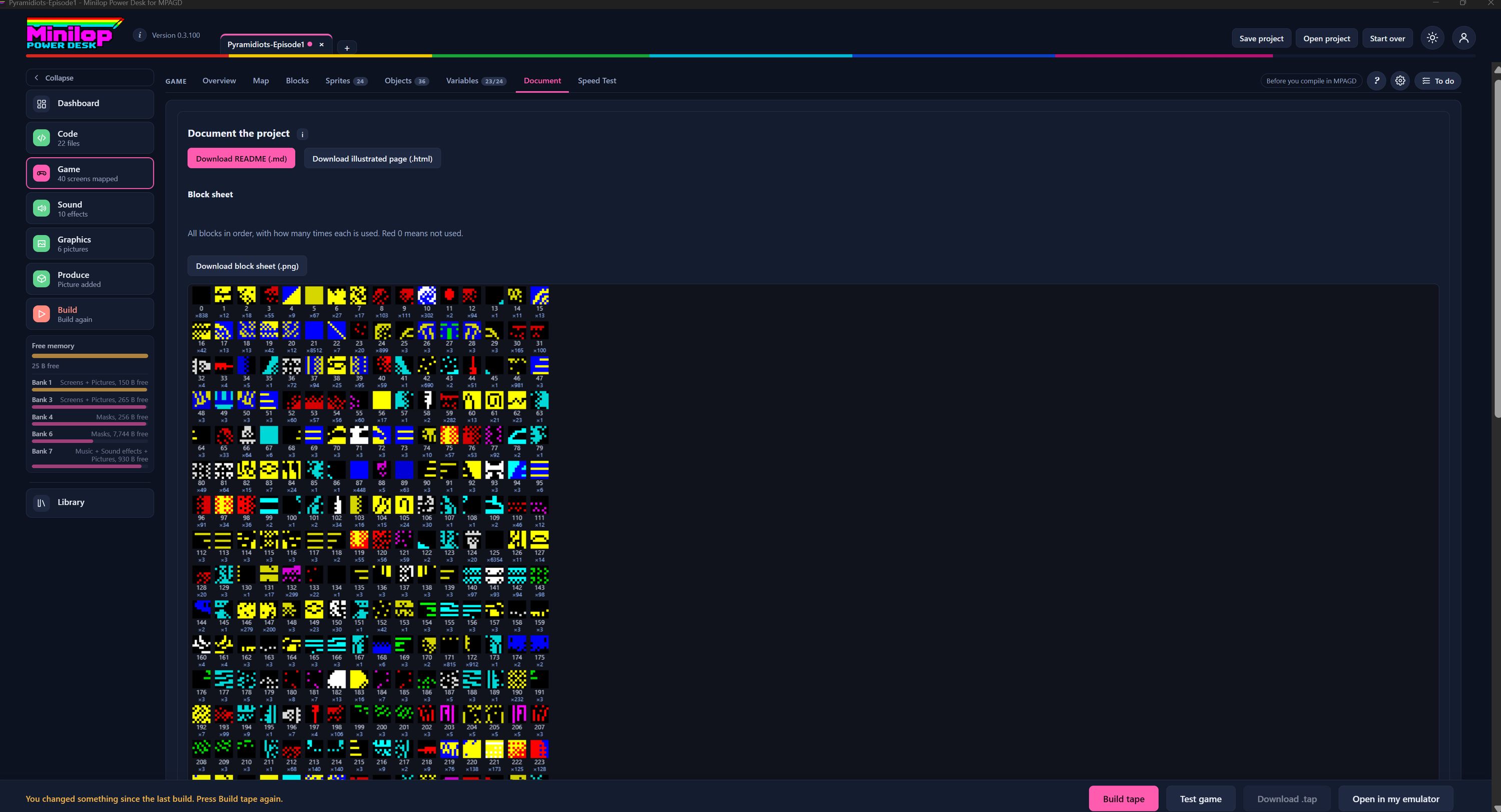
A picture of every block in your game, in order. Under each block is its number and how many times it is used across all your screens.
Spot blocks you do not use
A red 0 under a block means it is not used anywhere, so you can find blocks that are wasting space.
Save the sheet as a picture
Download block sheet (.png) saves the whole sheet as an image, handy for notes or for showing your tileset to other people.
All your blocks
Every block is drawn in the colours it has on the Spectrum. Scroll down to see the rest.
Pick the page
Game is highlighted in the side list, with a note of how many screens are mapped.
Then build the tape
When you are happy with your game, build the tape and test it in the built-in emulator, all without leaving the Desk.