
Power Desk · Guided tour
The Map
Every screen of your game, drawn from your own blocks and laid out as one map. Take a short tour of the screen.
Step 1 of 12
Your whole game on one map
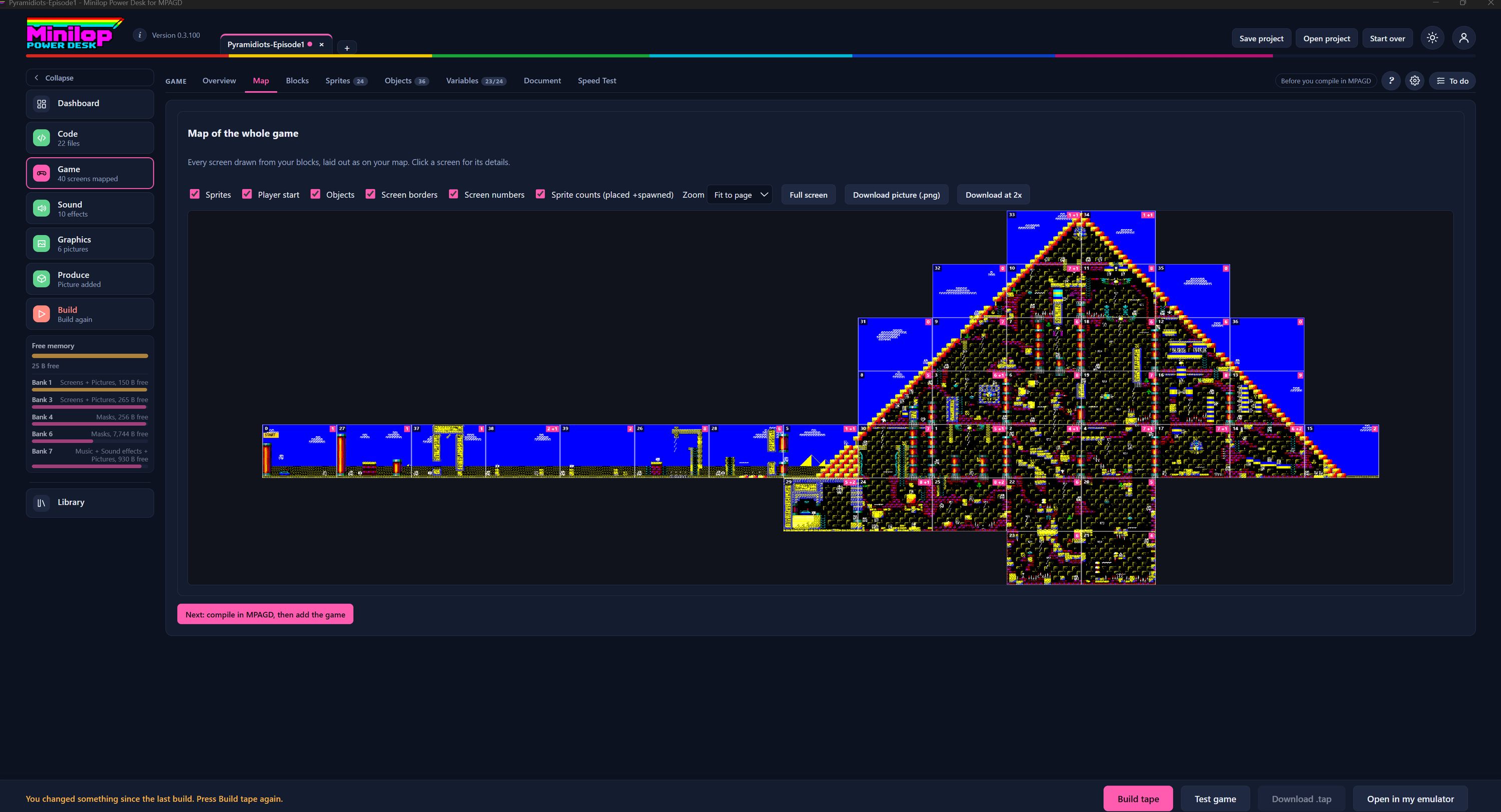
The Map page draws every screen of your game from your own blocks, laid out as they sit on your map. Use Next, or the numbers, to walk round the screen.
The Game tabs
Map sits with Overview, Blocks, Sprites, Objects, Variables, Document and Speed Test under Game. The side list says how many screens are mapped, 40 in this game.
What you are looking at
Every screen is drawn from your blocks, laid out as on your map. Click a screen for its details.
Choose what to show
Six tick boxes switch layers on or off: Sprites, Player start, Objects, Screen borders, Screen numbers and Sprite counts (placed plus spawned).
Zoom, full screen and pictures
Zoom lets you fit the map to the page or look closer. Full screen fills the window. Download picture (.png) saves the map as an image, and Download at 2x saves a larger one.
The map itself
Each coloured rectangle is one screen. You can see how your screens join up, and the shape of the whole game, in a single view.
Where the player starts
The Player start marker shows the screen where the player begins. Here it is screen 0 on the far left, marked START.
Screen numbers and sprite counts
Each screen has its number in the top corner, and a small tag for the sprites on it, such as 1 +1 for one placed and one spawned. That makes it easy to see where the crowded screens are.
Check the layout
Use the map to check that your screens link up the way you meant, before you spend time on scripts and testing.
Keep an eye on memory
The Free memory gauge in the side list shows the bytes free in main memory and in each 128K bank. It stays in view on every page.
What to do next
The pink button at the bottom says Next: compile in MPAGD, then add the game. It reminds you of the next stage in making your game.
Then build the tape
When you are happy with the map, build the tape and test your game in the built-in emulator.