
Power Desk · Guided tour
Join stages
Join separate tapes into one multi-stage game, and see what each stage carries over. Take a short tour of the page.
Step 1 of 12
Join several games into one tape
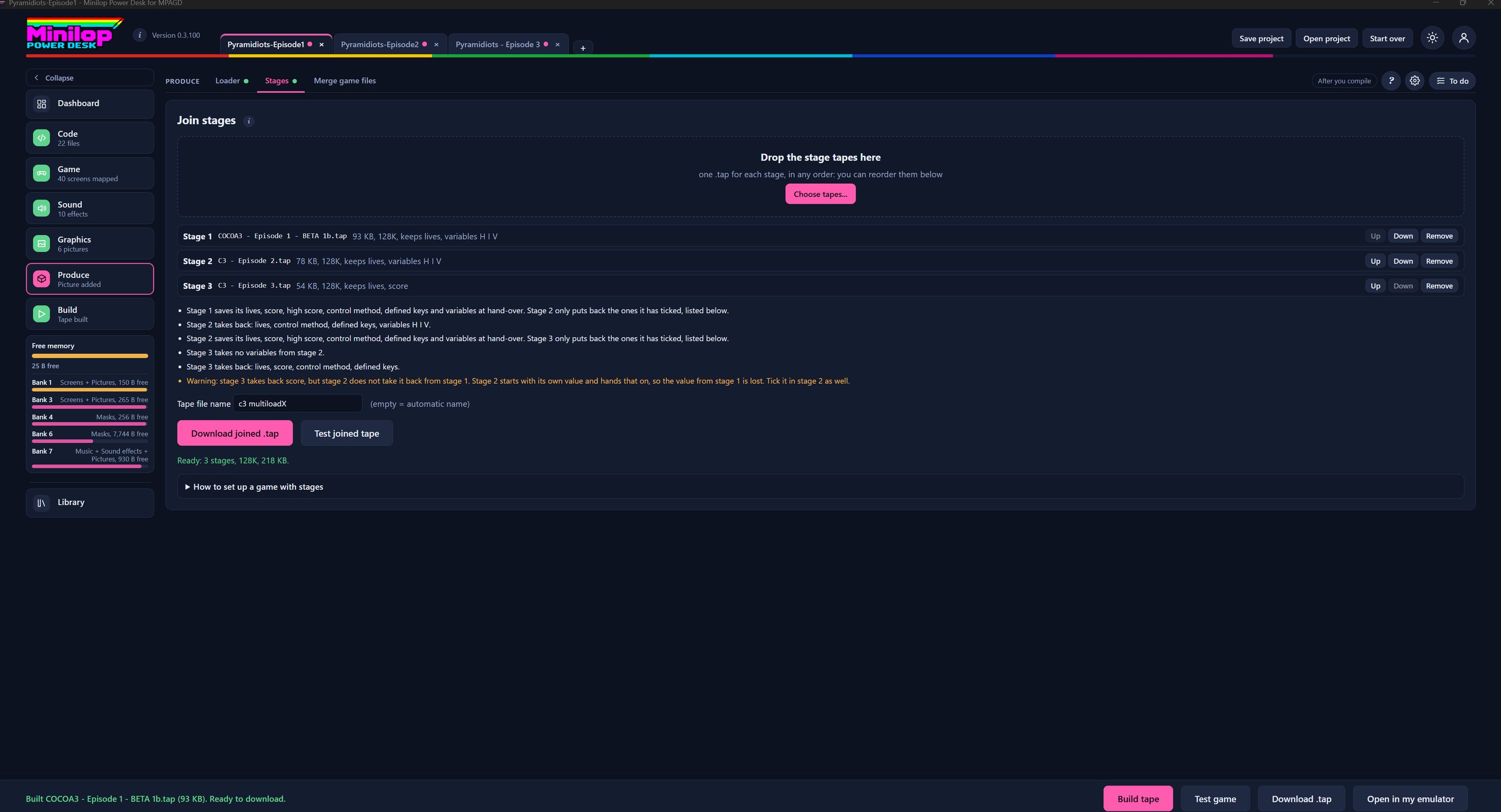
Stages joins separate game tapes into one multi-stage tape, so a long game can load level by level. The Desk also looks after what is carried from one stage to the next. Use Next, or the numbers, to walk round the screen.
Three tabs in Produce
Produce has Loader, Stages and Merge game files. This tour is about Stages.
Drop your tapes here
Drag in one .tap for each stage, in any order. You can reorder them afterwards.
Or choose them
Choose tapes opens a file picker if you prefer not to drag.
Your stages
Each stage shows its tape name, its size, whether it is 128K, and what it keeps from the stage before, for example lives or variables H, I and V.
Put them in order
Up and Down move a stage, and Remove takes it out of the list.
What is handed over
These lines say what each stage saves at hand-over and what the next stage takes back, such as lives, score, control method, defined keys and variables.
A warning when something is lost
If one stage takes back a value that the stage before it did not pass on, the Desk warns you and says which stage to fix.
Name the tape
Type a name for the joined tape. If you leave it empty the Desk makes one up.
Download or test
Download joined .tap saves the finished tape. Test joined tape runs it. A line below says when it is ready, with the stages, the memory type and the size.
A guide to setting up stages
How to set up a game with stages opens a short set of notes.
Build and test
Each stage is built like any other game. Build the tape for each one, then bring the tapes here.