Power Desk · Guided tour
Labels
Give your variables names you will remember, and see which ones are never used. Take a short tour of the page.
Step 1 of 11
Give your variables names
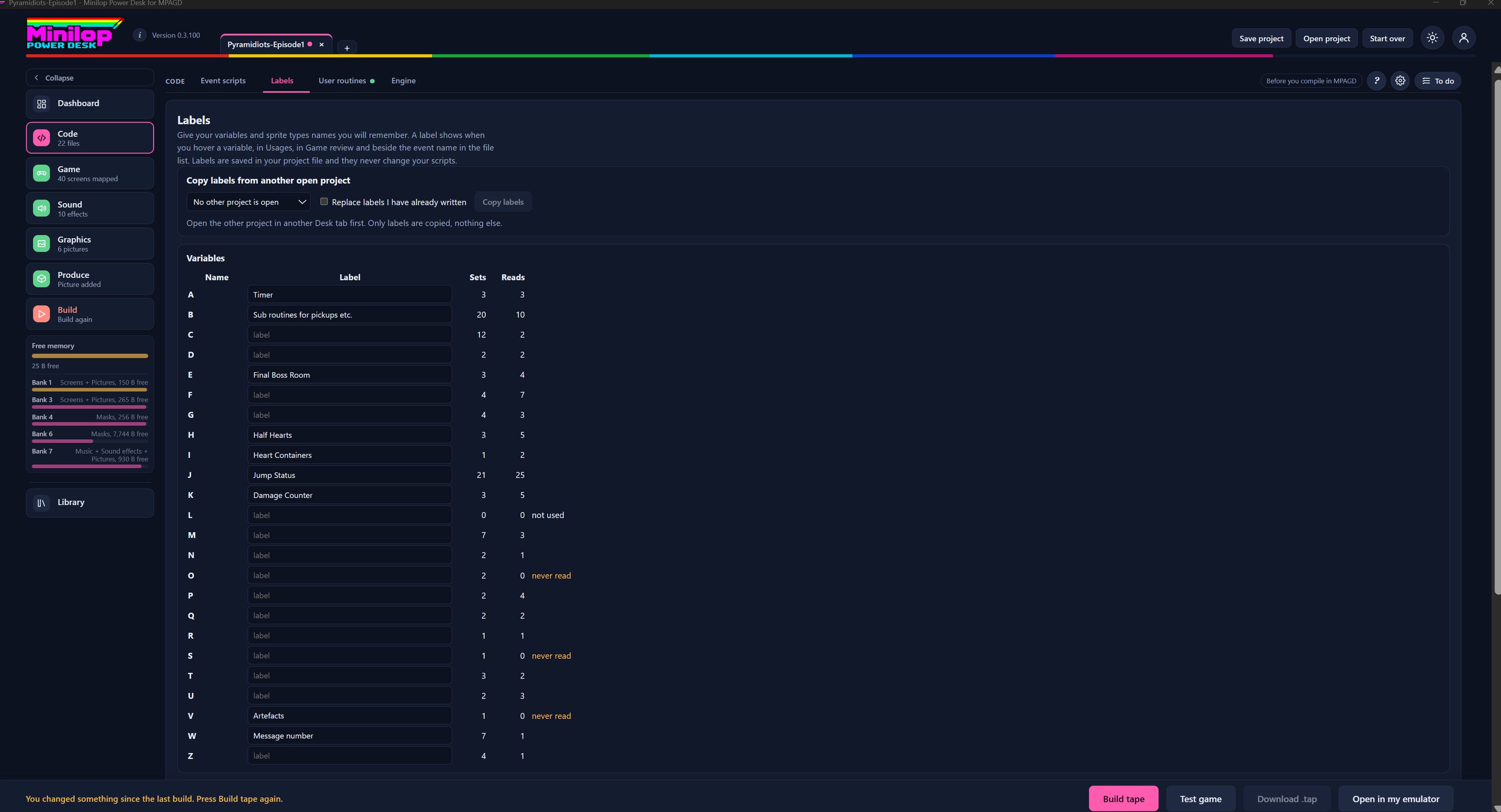
A label is a name you will remember, such as Timer or Jump Status, for a variable or a sprite type. Labels are saved in your project file and never change your scripts. Use Next, or the numbers, to walk round the screen.
Where labels show up
A label shows when you hover over a variable, in Usages, in Game review and beside the event name in the file list. It is a note for you, not code.
Copy labels from another project
If you have another project open in a second Desk tab, choose it here and press Copy labels. Replace labels I have already written lets it overwrite your own. Only labels are copied, nothing else.
Variable names
The Name column lists the variables your game can use, from A to Z.
Type a label
Click a box in the Label column and type a name. A greyed "label" means that variable has no name yet.
Sets and Reads
Sets counts how many times your scripts write to the variable and Reads counts how many times they look at it.
Spot unused variables
A note in orange or white warns you when a variable is not used at all or is set but never read. These are good places to check for leftover code.
Variable L is free
L has no sets and no reads, so it says "not used". You can use it for something new.
Set but never read
The O, S and V rows say "never read". Each is set by your scripts but nothing ever looks at it, which is worth a second look.
Keep an eye on memory
The Free memory gauge in the side list shows the bytes free in main memory and in each 128K bank.
Then build the tape
Once your labels are in, build the tape and test your game in the built-in emulator without leaving the Desk.
Next tour: Variables All tours