
Power Desk · Guided tour
The Dashboard
Your whole project on one page: what is in it, how much memory is left and what to do next. Take a short tour of the screen.
Step 1 of 12
Your project at a glance
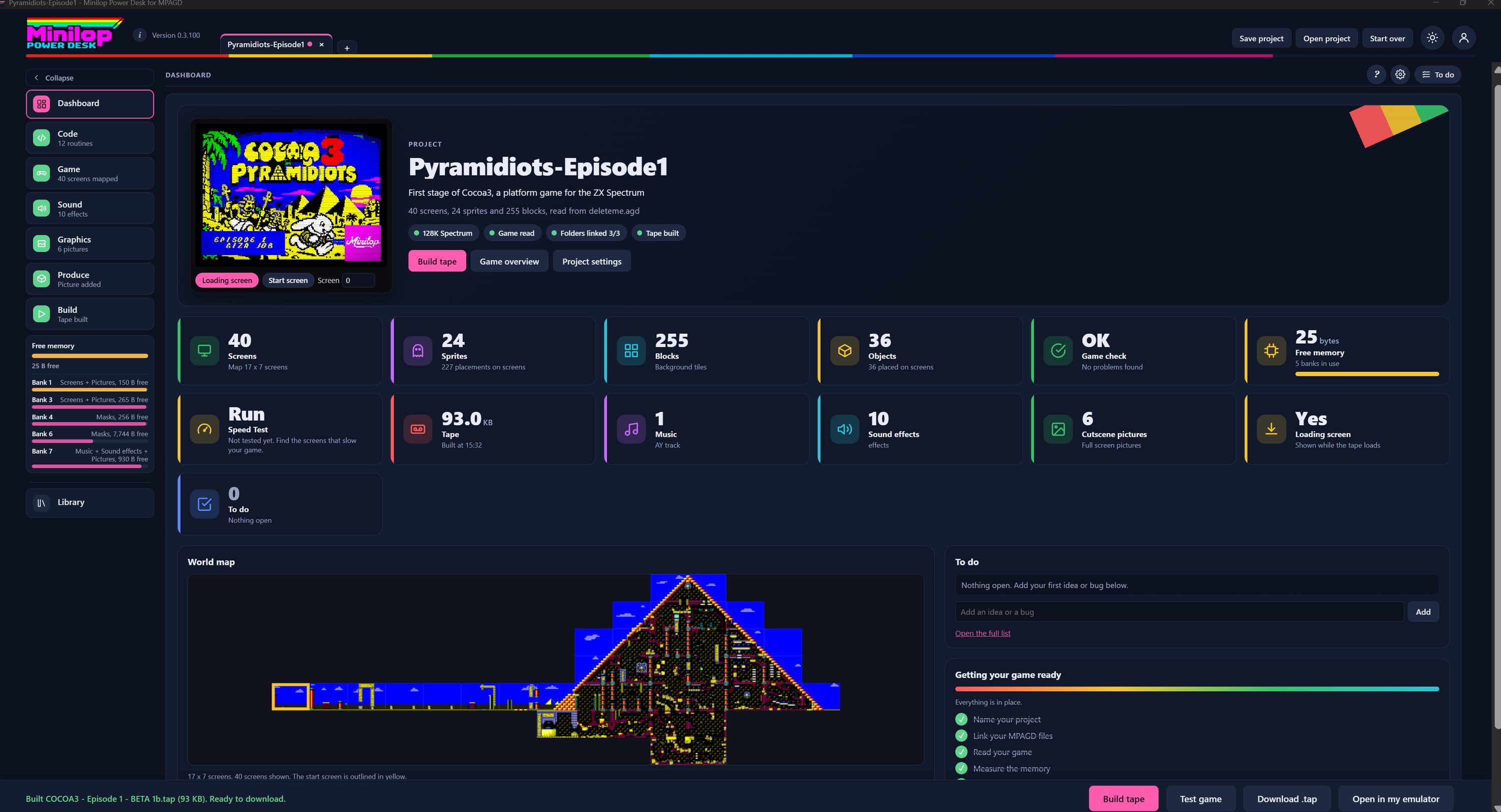
The Dashboard is the first page you see. It shows what is in your game, how much memory is left and what to do next. Use Next, or the numbers, to walk round the screen.
Your project tabs
Each open project has its own tab, so you can keep more than one game open and switch between them. The + adds another. Save project, Open project and Start over sit at the top right.
Pages down the side
Dashboard, Code, Game, Sound, Graphics, Produce and Build each have a button here, with a short line under the name, such as how many screens are mapped or how many effects you have. Collapse tucks the list away to give you more room.
Free memory always in view
The Free memory gauge stays on the left whichever page you are on. It shows the bytes free in main memory and in each 128K bank, so you see the cost of a change as you make it.
Your game's title card
Your loading screen is shown here, with the project name and a one line description under it. Loading screen and Start screen switch the picture, and the Screen box lets you look at any screen of the game.
Project status
Small badges say whether the game is 128K, has been read, has its folders linked and has a tape built. Build tape, Game overview and Project settings are just below.
Counts for every part
Tiles show how many screens, sprites, blocks and objects the game has, whether the game check found any problems, and how many bytes are free. Each tile is a quick way into the page it describes.
Speed, tape, music and pictures
The second row shows your Speed Test, the size of the built tape and when it was built, your music, your sound effects, your cutscene pictures and whether a loading screen is set.
World map
All your screens laid out on the map, with the start screen outlined in yellow. It shows at a glance how the game fits together.
To do
Add an idea or a bug and it is kept with the project. Open the full list shows everything. The To do button at the top right opens the same list from any page.
Getting your game ready
A short checklist walks you through naming the project, linking your MPAGD files, reading the game and measuring the memory. Ticks show what is done.
Then build the tape
Build tape makes your game. Test game runs it in the built-in emulator, Download .tap saves the tape and Open in my emulator sends it to your own.