
Power Desk · Guided tour
The Screen Editor
Draw loading screens and cutscene pictures that follow the Spectrum's colour rules. Take a short tour of the screen.
Step 1 of 11
Draw your loading screen and cutscenes
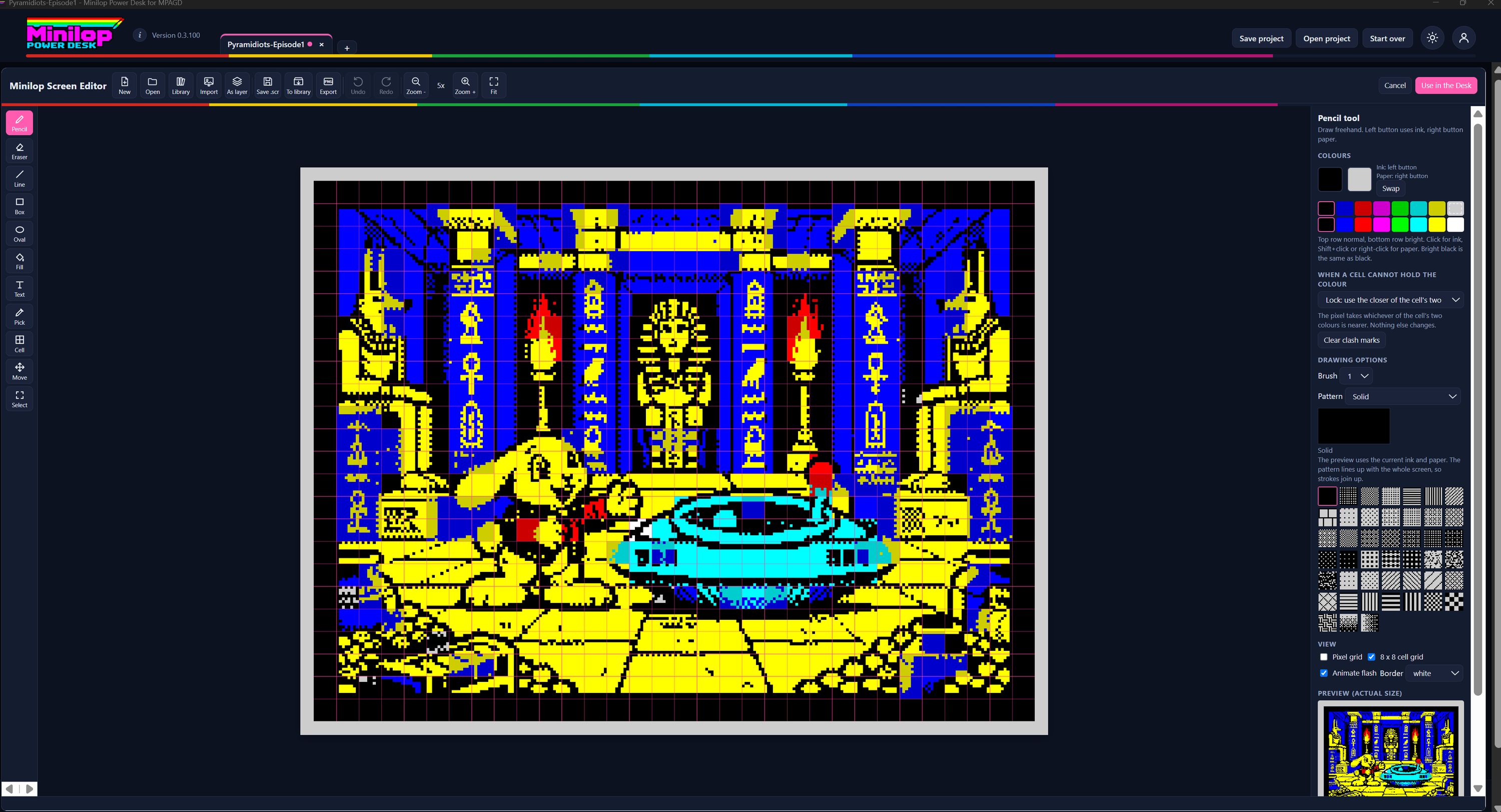
The Screen Editor draws full screen pictures that follow the Spectrum's colour rules, for your loading screen and your cutscenes. Use Next, or the numbers, to walk round the screen.
Open, import and save
Start a New picture or Open a .scr. Import converts a PNG, JPG or GIF, with optional dithering, and As layer adds one on top of the picture you are working on. Save .scr, To library and Export send the result where you need it, and the Library keeps your pictures for reuse.
Undo, redo and zoom
Undo and Redo step back and forward through everything you draw. Zoom out and in, or Fit the picture to the window.
A tool for each job
Pencil, Eraser, Line, Box, Oval, Fill, Text, Pick, Cell, Move and Select. Fill can be limited to a selection, and Text has its own fonts, sizes and a live preview.
The picture itself
Your screen is drawn at 256 by 192 pixels, shown here at 5 times size, with a faint grid marking the 8 by 8 pixel cells. The Spectrum allows two colours in each cell, so the grid shows you where the limits are.
Ink and paper
The left button draws in ink and the right button in paper. The top row of colours is normal and the bottom row is bright. Swap exchanges ink and paper.
When a cell cannot hold the colour
If a pixel needs a third colour in a cell, you decide what happens: Lock uses the closer of the cell's two colours, Recolour changes the cell's ink or paper, and Warn marks the clash so you can fix it. Clear clash marks removes the marks.
Patterns and dithering
The drawing tools take one of 45 patterns, from Solid through dithers, hatching, lines and checkers to two gradient ramps. A pattern is fixed to the whole screen, so strokes in the same pattern join up without seams.
Grids and flash
Switch the pixel grid and the 8 by 8 cell grid on or off, animate flashing colours as the Spectrum would, and change the border colour.
Actual size preview
A small preview shows the picture at its real size, which is how it will look on a Spectrum.
Use it in the Desk
When you are happy, choose Use in the Desk and the picture goes into your project as the loading screen or a cutscene. Cancel leaves everything as it was.
Next tour: AY Tracker All tours