
Power Desk · Guided tour
The AY Tracker
Write and edit PT3 music for your game without leaving the Desk. Take a short tour of the screen.
Step 1 of 12
Write the music for your game
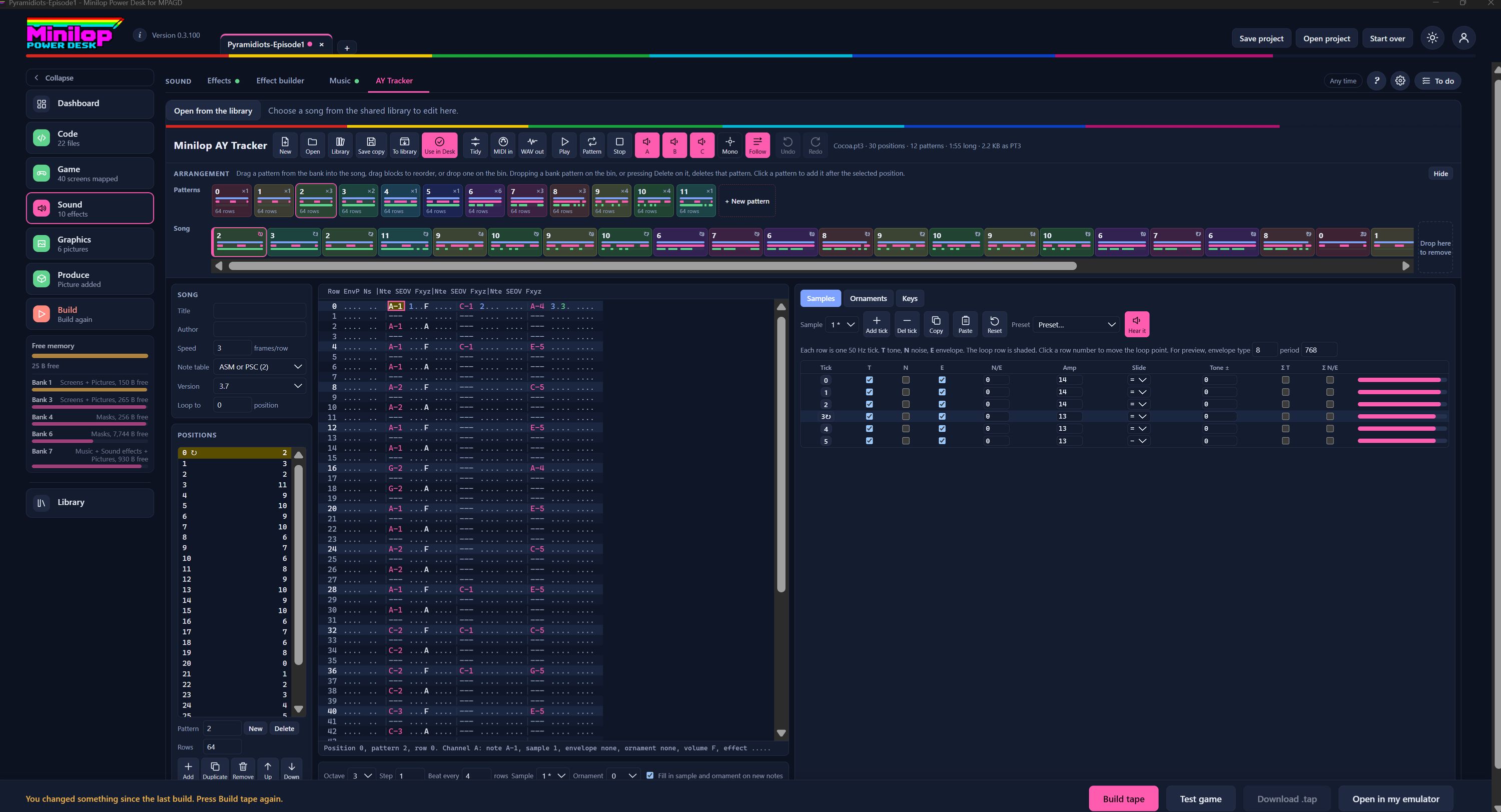
The AY Tracker makes and edits PT3 songs without leaving the Desk. It plays them with the same player your game uses, so what you hear is what the game plays. Use Next, or the numbers, to walk round the screen.
Find it in Sound
The tracker has its own tab in Sound, beside Effects, Effect builder and Music. It stays open when you move to another page, so your song is still there when you come back.
Open, save and use
New, Open and Library start or load a song, Save copy downloads a .pt3 file and To library keeps it for later. The pink Use in Desk puts the edited song straight into your game.
Tidy, MIDI in and WAV out
Tidy cleans up the song. MIDI in turns a MIDI file into a starting arrangement, and WAV out saves a listening copy you can share.
Play and mute
Play the song, one pattern or stop. A, B and C mute each of the three sound channels, Mono folds them together, and Follow keeps the grid scrolling with the music.
Arrange by drag and drop
The patterns sit in a bank, each with a bar per channel showing where the notes are. Drag a pattern into the song, drag blocks to reorder them, and drop one on the bin to remove it. Everything has undo.
Song settings
Give the song a title and author, set the speed in frames per row, choose the note table and PT3 version, and set the position the song loops back to.
The song, position by position
Every position in the song and the pattern it plays. Click one to jump to it, and use Add, Duplicate, Remove, Up and Down to change the order. Pattern and Rows set the pattern you are editing.
The pattern grid
Type notes straight in with the Vortex Tracker key layout, one column group for each channel: note, sample, envelope, ornament, volume and effect. The line below the grid tells you what is under the cursor.
Design your own sounds
Samples, Ornaments and Keys sit in the right panel. A sample sets tone, noise, envelope and volume for each 50 Hz tick, and Hear it plays the sound on its own. Ornaments add arpeggios and vibrato.
Entering notes
Choose the octave, the step to move after each note, and which sample and ornament to fill in on new notes.
Then build the tape
When the song sounds right, choose Use in Desk, build the tape and test your game with its new music in the built-in emulator.
Next tour: Dashboard All tours